

- HTTP 403 Forbidden means the server understood the request but refuses to fulfil it. Unlike a 401, sending credentials won’t change the answer.
- In WordPress, a 403 error usually comes from file permissions, a bad .htaccess rule, a security plugin, the host’s firewall, a CDN rule, hotlink protection or a missing index file.
- Google treats an HTTP 403 like other 4xx errors: it doesn’t index the page, and already indexed URLs that keep returning 403 are removed from the index.
- Use URL Inspection’s live test, the Page indexing report and your server logs to confirm Googlebot isn’t being blocked by mistake.
HTTP 403 Forbidden is the status code a server sends when it understands a request but refuses to fulfil it: the page may well exist, but this visitor, or this bot, isn’t allowed to see it. On WordPress sites, a 403 error almost always comes from a permission setting, a server rule or a security layer, and once you find which one, the fix is usually quick.
This guide explains what an HTTP 403 means, how it differs from 401 and 404, the seven WordPress causes in the order to check them, and how to fix each. It also covers how a 403 affects crawling and indexing, and how to confirm Googlebot isn’t being locked out.
In this HTTP 403 guide
What does HTTP 403 Forbidden mean?
An HTTP 403 status code means the server understood the request but refuses to fulfil it. The HTTP standard, RFC 9110, adds that if credentials were sent, the server considers them insufficient, and that a request can be forbidden for reasons that have nothing to do with credentials, such as an IP block.
You’ll see it worded in different ways depending on the server: “403 Forbidden”, “Access denied”, “You don’t have permission to access this resource”, or a branded block page from a CDN or security plugin. They all mean the same thing. The server is working and reachable; it has decided not to serve this request.
Definition: A 403 Forbidden response is a deliberate refusal. The server knows what you asked for and is choosing not to serve it, because of permissions, a rule or a security decision. RFC 9110 even allows a server to answer 404 instead, if it wants to hide that the resource exists.
That last point matters for troubleshooting. A 403 error is usually caused by configuration you, your host or a plugin set up, so it has a findable cause, unlike a 5xx error, which signals that the server failed.
HTTP 403 vs 401 vs 404: what is the difference?
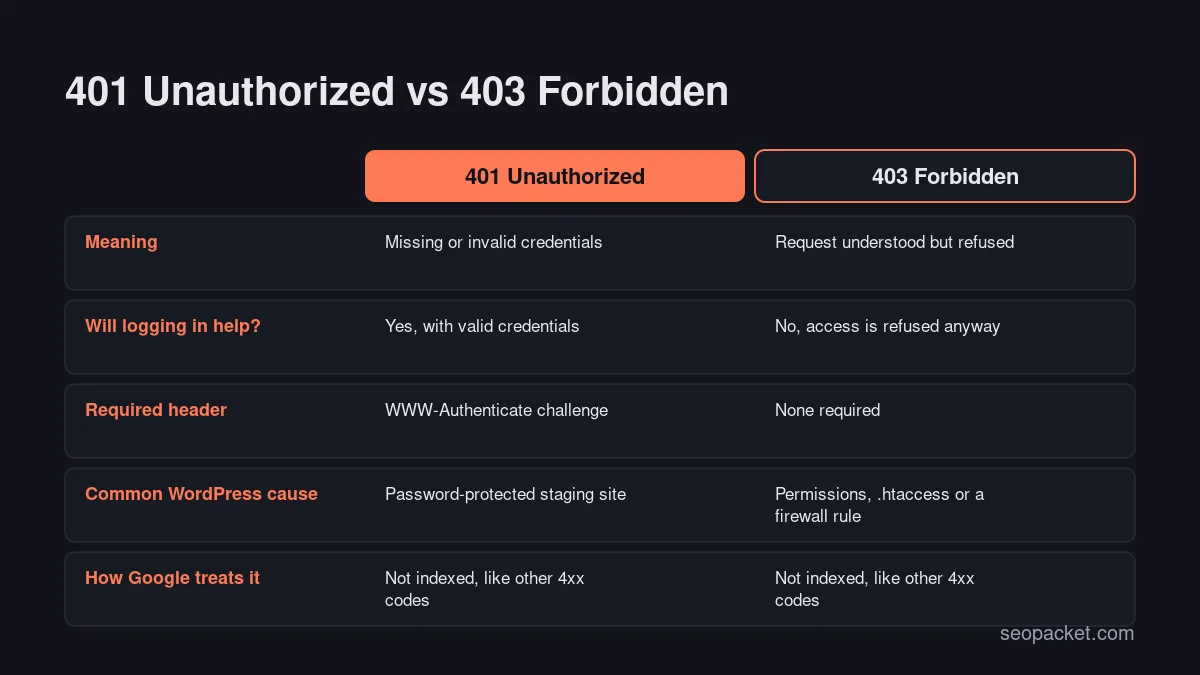
A 401 means “you need to authenticate”, a 403 means “you’re not allowed, whoever you are”, and a 404 means “there’s nothing here” (or the server won’t say). Logging in can fix a 401, while for a 403 error authentication makes no difference. For Google Search, all three are client errors that keep a page out of the index.
| Code | Name | What it means | Typical WordPress cause |
|---|---|---|---|
| 401 | Unauthorized | Valid credentials are missing; the server sends a login challenge | HTTP password protection on a staging site |
| 403 | Forbidden | The request is refused regardless of credentials | Permissions, .htaccess, a firewall or security rule |
| 404 | Not Found | No current page at this URL, or the server won’t disclose one | Deleted post, changed permalink, typo in a link |
| 410 | Gone | The page was removed on purpose and won’t come back | Retired product or campaign page |
What causes a 403 error in WordPress?
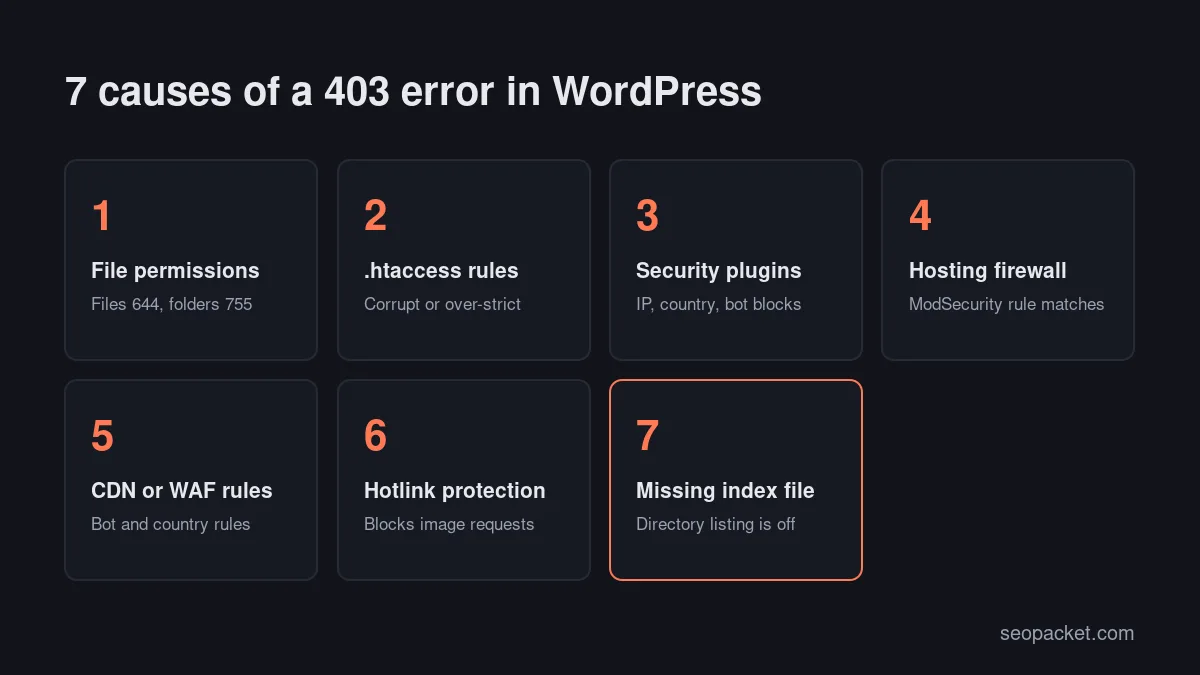
Seven causes account for most WordPress 403 errors: wrong file or folder permissions, a corrupt or over-strict .htaccess file, a security plugin block, the host’s firewall (often ModSecurity), CDN or WAF rules, hotlink protection, and a missing index file. Check them roughly in that order, from the simplest to the most specific.
The pattern of the error is your best clue. Before changing anything, note who gets the 403 and where:
| Who sees the 403 error | Most likely cause |
|---|---|
| Everyone, on every page | Permissions on the site root, .htaccess, or a missing index.php |
| Only you, or one office | Your IP is blocked by a security plugin or the host’s firewall |
| Only when saving a post or submitting a form | ModSecurity or a WAF rule matching the request |
| Only bots, such as Googlebot | CDN, WAF or security plugin bot rules, or a country block |
| Only images loaded from other sites | Hotlink protection |
| Only on a folder URL | No index file, with directory listing turned off |
How do you find the cause of a 403 Forbidden response?
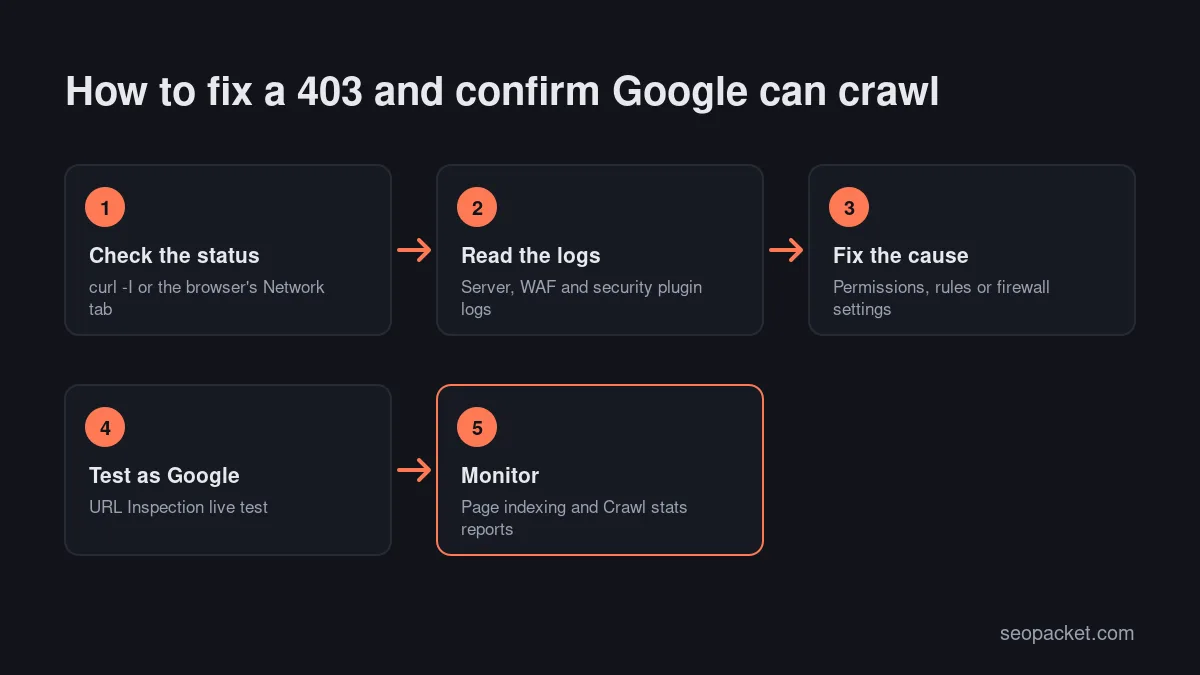
Work from evidence rather than guesses. Confirm the status code, find out who receives it, and read the logs: the server error log, your CDN’s security events and your security plugin’s block log usually name the exact rule that fired.
- Confirm it’s really a 403 error. Run
curl -I https://example.com/page/in a terminal, or open the browser’s developer tools, reload, and read the status in the Network tab. - Test from a different network. Open the page in a private window on mobile data. If it loads, your IP is the problem, not the page.
- Test with a crawler user agent.
curl -I -A "Googlebot" https://example.com/page/shows whether user-agent rules treat bots differently. Real Googlebot is verified by IP, so this only tests user-agent rules. - Read the server error log. Your hosting panel usually shows it. Look for “permission denied”, “directory index forbidden” or a ModSecurity rule ID.
- Check the CDN and security plugin logs. Look for blocked requests to the same URL at the same time.
- Note what changed recently. A migration, a new plugin, a host security update or a CDN setting is often the trigger.
How do you fix a 403 Forbidden error in WordPress?
Fix the cause your logs point to, starting with the simplest checks. Back up the site first, change one thing at a time, and retest the URL after each change so you know which fix worked and nothing else breaks.
1. Reset file and folder permissions
If the web server can’t read a file, it returns 403 Forbidden. The WordPress file permissions guide recommends 755 or 750 for directories, 644 or 640 for files, and 440 or 400 for wp-config.php. It also says no directory should ever be set to 777, even for uploads.
You can change permissions in your host’s file manager or an SFTP client. With SSH access, these commands run from the WordPress root reset everything in one go: find . -type d -exec chmod 755 {} \; and find . -type f -exec chmod 644 {} \;. Then tighten wp-config.php again. If permissions look right but the 403 remains, ask your host to check file ownership.
2. Rebuild the .htaccess file
On Apache and LiteSpeed servers, one bad line in .htaccess can forbid the whole site. Rename the file to .htaccess-old using SFTP or the file manager, then reload the page. If the 403 error disappears, go to Settings › Permalinks in WordPress and click Save Changes, which writes a fresh default rewrite block.
Before deleting the old file, look for lines such as Deny from all, Require all denied or IP rules added by a plugin or a previous developer, and copy back only the rules you still need. Nginx servers don’t use .htaccess, so if your host runs Nginx, the equivalent rules live in the server configuration and your host can check them.
3. Check security plugins and IP blocks
Security plugins block IP addresses, countries, user agents and request patterns, and some of those blocks show as a 403 error. Open the plugin’s block log or live traffic view, find the blocked request and unblock or allowlist it. If you’re locked out of wp-admin, rename the plugin’s folder in wp-content/plugins over SFTP; WordPress deactivates a plugin it can’t find.
Be careful with country blocks. Google’s documentation on locale-adaptive pages notes that Googlebot’s default IP addresses appear to be based in the USA, so a rule that blocks US traffic can block most of Google’s crawling too.
4. Ask your host about ModSecurity and server firewalls
Many hosts run ModSecurity or a similar web application firewall in front of WordPress. When a request matches a rule, for example a post containing code, an unusual form submission or a large admin-ajax request, the firewall answers with 403 Forbidden before WordPress even runs.
The error log usually shows the rule ID. Send the URL, the time and the rule ID to your host and ask them to adjust or disable that single rule for your site. Avoid switching the whole firewall off; on cPanel hosts there’s often a ModSecurity toggle, but it’s a last resort and only for testing.
5. Review CDN and WAF bot rules
CDNs and cloud firewalls such as Cloudflare sit in front of your server, so their blocks never reach your server logs. Open the provider’s security events log and filter by the blocked URL or by user agent. Custom rules that block countries, ASNs or user agents, rate limits and bot-protection modes are the usual suspects.
When you need exceptions for search engines, use the provider’s verified-bot condition rather than a user-agent match, because anyone can fake a user agent. Also check AI crawlers. If you want to appear in AI search answers, make sure rules aimed at scrapers aren’t blocking the crawlers you rely on. SEOPacket’s free AI-search readiness score includes a crawler access check, and our guide to GEO vs SEO explains why it matters.
6. Loosen hotlink protection
Hotlink protection stops other sites from embedding your images by refusing requests with an unknown referrer. Set too strictly, it returns a 403 error for your own images, for example when it doesn’t list both the www and non-www versions of your domain, your CDN hostname, or requests with no referrer at all. Add the missing domains, or turn the feature off at the host and handle hotlinking at the CDN instead.
7. Restore a missing index file
When a URL points to a folder that has no index.php or index.html, and directory listing is switched off, the server returns 403 Forbidden rather than showing the folder’s contents. That’s the safe default, so don’t turn directory listing on. On WordPress, this can happen when the root index.php was deleted by a failed update or a malware clean-up. Restore it from a fresh copy of the same WordPress version.
Quick answer: If the whole site suddenly shows 403 Forbidden, check permissions on the site root, rename .htaccess, and confirm index.php exists. Those three checks solve most site-wide cases in minutes.
Where 403 errors show up in WordPress
Some 403 errors only affect one part of WordPress, and the location points to the cause:
- wp-admin and wp-login.php: login protection from the host or a security plugin, often an IP or country rule.
- wp-json: a security rule blocking the REST API, which can make the block editor fail to save with an “Updating failed” message.
- xmlrpc.php: often blocked on purpose to stop brute-force attempts. That’s fine if you don’t use apps that need it.
- wp-content/uploads: wrong permissions on new upload folders, or hotlink protection.
How do you stop 403 errors coming back?
Most repeat 403 errors follow a change: a migration, a restore from backup, a plugin update or a new firewall rule at the host or CDN. Build a short routine around those moments and you’ll catch the next one before visitors or Google do.
- Re-check permissions after every migration or restore, because archive tools and manual uploads often change them.
- Record every firewall exception with the rule ID, the reason and the date, so a host or CDN change doesn’t silently undo it.
- Test a fixed set of URLs after security changes: the home page, a post, an image, wp-admin and wp-json, plus one URL Inspection live test.
- Keep staging sites behind a password (401) rather than an IP block, so the setup is obvious to anyone who inherits it.
How does an HTTP 403 affect crawling and indexing?
Google treats a 403 like any other 4xx error except 429: it ignores the content, doesn’t index the URL, and removes already indexed URLs that keep returning it. Google’s documentation on how HTTP status codes affect its crawlers also says 4xx codes other than 429 don’t change your crawl rate.
So an HTTP 403 won’t slow Google down, but it will drop pages from search. If Google doesn’t happen to recrawl a page while it returns 403, nothing changes. If it does, the page can drop out of the index until Google crawls it again and gets a normal 200 response.
Google is specific about one more thing: don’t use 401 or 403 to limit how fast Google crawls. If Googlebot is putting too much load on the server, a temporary 429 or 503 tells it to slow down, while a 403 just tells it the content is unavailable.
Search Console shows both sides of the problem:
- Page indexing report: pages appear under “Blocked due to access forbidden (403)”. Google’s help for this report points out that Googlebot never sends credentials, so a 403 error here is usually a server mistake if you want the page indexed.
- Crawl stats report: under Settings, the breakdown by response shows how many crawl requests got a 4xx response, grouped as “Other client error (4XX)” for codes such as 403.
SEOPacket’s free site crawl flags 4xx pages too, which helps you catch a 403 error on pages Google hasn’t reached yet. Add a status-code check to your technical SEO checklist for every release and migration.
How do you confirm Googlebot isn’t getting a 403 error?
Run a live test with URL Inspection in Search Console: if the page fetch succeeds and the screenshot shows your content, Google’s tools can reach the page. Then confirm it from your server’s side by finding real Googlebot requests in the access logs and checking which status code they received.
- Inspect the URL in Search Console and click Test live URL.
- Read Page availability. “Page fetch: Successful” is what you want. A failed fetch with an HTTP 403 means something is still blocking Google.
- View the tested page to check the rendered screenshot and the HTTP response.
- Request indexing once the live test passes, if the page dropped out. Our guide to getting indexed by Google covers the next steps.
- Check real Googlebot traffic in your access logs, verifying the IPs with a reverse DNS lookup as Google describes.
One nuance: URL Inspection and the Rich Results Test fetch as Google-InspectionTool, a Google crawler with its own user agent that doesn’t contain the word “Googlebot”. A firewall rule that matches “Googlebot” can block real crawling while the live test passes, which is why the log check in step 5 matters.
When is HTTP 403 the right response?
A 403 is correct when you deliberately refuse access: private folders, a staging site you don’t want crawled, bad bots, or AI training crawlers you’ve chosen to block. In those cases, leave it in place, keep the URLs out of your sitemap and internal links, and expect them to stay out of Google.
Watch out: don’t return 403 Forbidden for pages you’ve deleted. Use 404 or 410 so the meaning is clear to people and search engines, and redirect only when a true replacement page exists.
Soft Learn Hub, the company behind SEOPacket, has a short primer on technical SEO basics, including crawl errors, if you want the wider context of how crawl errors limit indexing.
Frequently asked questions
What does HTTP 403 Forbidden mean?
It means the server understood the request but refuses to fulfil it. The page may exist, but the visitor or bot isn’t allowed to access it, usually because of permissions, a server rule or a security setting.
What is the difference between a 401 and a 403 error?
A 401 means valid credentials are missing, and logging in can fix it. A 403 error means access is refused regardless of credentials, so you need to change the rule, permission or block that causes it.
Does a 403 error hurt SEO?
It can. Google doesn’t index pages that return a 403, and indexed pages that keep returning it are removed from the index. A brief error only matters if Google recrawls the page during it, and the page can return once Google sees it working again.
How do I fix a 403 Forbidden error in WordPress?
Check file permissions (644 for files, 755 for folders), rename .htaccess and resave your permalinks, then review security plugin blocks, your host’s firewall, CDN rules, hotlink protection and whether index.php is missing. Your server and firewall logs usually show which one is responsible.
Why does Googlebot get a 403 error when my browser doesn't?
Bot protection, user-agent rules, rate limits or country blocks at your CDN, firewall or security plugin can treat crawlers differently from browsers. Run a URL Inspection live test and check your logs for verified Googlebot requests to find the rule.
Should I use HTTP 403 to slow down Googlebot?
No. Google says not to use 401 or 403 to limit crawling, and 4xx codes other than 429 don’t affect crawl rate. A temporary 429 or 503 response tells Google’s crawlers to slow down.

Leave a Reply