

- The Google Rich Results Test checks whether structured data on a URL or in a code snippet is valid for the rich result types Google Search supports, and shows errors and warnings for each item.
- In the Rich Results Test, errors (critical issues) make an item ineligible for a rich result. Warnings (non-critical issues) are missing recommended properties, and the item can still qualify.
- A valid Rich Results Test result is not a promise. Google decides whether to show a rich result, and some types, such as FAQ and How-to, are no longer shown at all.
- Use the Rich Results Test for Google eligibility, the Schema Markup Validator for general schema.org syntax, and URL Inspection plus Search Console reports to see what Google actually indexed.
The Google Rich Results Test is Google’s free tool for checking whether the structured data on a page, or in a pasted code snippet, is valid for the rich result features Google Search supports, such as product snippets, review stars and breadcrumbs. It lists every rich result type it finds, marks each item as valid or invalid, and explains the errors and warnings you need to fix.
This guide covers what the test checks and misses, how to read the report, how to fix the seven most common errors, and how it compares with other tools. It ends with a structured data testing workflow you can repeat after every publish.
In this Rich Results Test guide
What does the Google Rich Results Test check?
The Google Rich Results Test fetches a page (or reads your code), finds structured data in JSON-LD, Microdata or RDFa, and compares it with Google’s requirements for each supported rich result type. It reports which types it detected, whether each item is valid, and which required or recommended properties are missing or wrong.
You can open the tool at search.google.com/test/rich-results. When you test a URL, it fetches the page as Google-InspectionTool, renders it, and reads the final HTML, so markup added by JavaScript is included. For some result types it also shows a preview of how the result might look in Google Search.
At the time of writing, Google’s Rich Results Test help page lists the supported types, including Article, Breadcrumb, Event, Job posting, Local business, Merchant listings, Organization, Product snippet, Recipe, Review snippet, Software app and Video. If a type isn’t on that list, the tool ignores it.
What the Rich Results Test does not check
- Whether you will get a rich result. Google decides that per search. Valid markup only makes a page eligible.
- Schema.org types Google doesn’t use. Markup for unsupported types is simply not reported, even when it’s perfectly valid.
- Policy and quality issues. The tool can’t tell whether your markup matches the visible content, whether reviews are genuine or whether the page breaks Google’s guidelines.
- Your whole site. It tests one URL or snippet at a time.
- Private pages. Pages behind a login or firewall can’t be fetched, though Google suggests a tunnel for local pages.
- Indexing. A clean test says nothing about whether Google has crawled or indexed the page.
Definition: Structured data is code, usually JSON-LD, that describes a page’s content in a standard vocabulary from schema.org, for example “this is a product, it costs £20 and has a 4.6 rating”. Rich results are the enhanced search listings Google can build from it, such as stars, prices and breadcrumb trails.
How do you use the Google Rich Results Test on a URL or snippet?
Choose URL when the page is live and you want to see what Google sees after rendering. Choose Code when the page isn’t published yet, sits on a staging server Google can’t reach, or when you want to try fixes quickly.
Here’s the procedure for either mode:
- Open the Rich Results Test and pick the URL tab or the Code tab.
- Paste the full URL (including https://) or the complete HTML or JSON-LD snippet.
- Leave the user agent on smartphone, the default, unless you serve different markup to desktop visitors.
- Click Test URL or Test code and wait for the crawl and render to finish.
- Read the summary line at the top, then expand each detected rich result type.
- Click an issue to jump to the exact line in the code explorer, fix it, and run the test again.
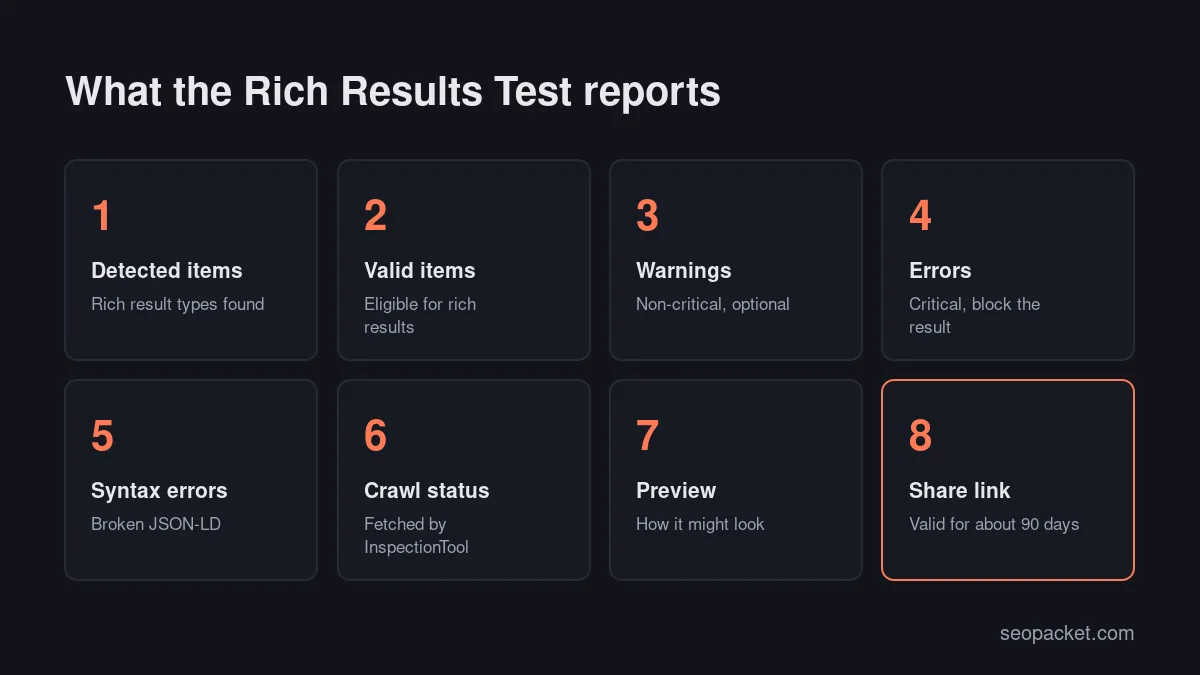
- Use Share to send the result to a developer. Google says shared links stay valid for about 90 days.
In Code mode you can edit the snippet inside the tool and rerun it as often as you like, the fastest way to try fixes. In URL mode, clear any page cache first or you may be testing the old version.
Watch out: the Rich Results Test ignores comments inside JSON-LD, but comments aren’t valid JSON-LD and can break the markup elsewhere. Remove them before publishing, even if the test passes.
How do you read the Rich Results Test report?
The summary line tells you the overall state: valid items detected, valid items with warnings, some items invalid, all items invalid, no items detected, syntax errors detected, or URL cannot be crawled. Below it, each rich result type gets its own section listing every item and its issues.
| Rich Results Test status | What it means | What to do |
|---|---|---|
| Valid items detected | The markup meets Google’s requirements | Nothing, or add optional properties |
| Valid items with warnings | Eligible, but recommended properties are missing | Add the missing properties if you have the data |
| Some or all items invalid | At least one critical issue in an item | Fix every error, then retest |
| Syntax errors detected | The parser couldn’t read the markup | Fix the JSON first: commas, braces, quotes |
| No items detected | No supported rich result type was found | Check the type is supported and the markup renders |
| URL cannot be crawled | The tool couldn’t fetch the page | Check robots.txt, firewall, login and DNS |
Rich Results Test warnings vs errors
Errors are critical issues. An item with even one error is invalid and can’t appear as a rich result. Warnings are non-critical: usually a recommended property is missing, such as an image or a price range, and the item is still eligible. Google’s Article documentation puts it plainly: fix the critical errors, and consider fixing non-critical issues because they can improve your markup, but they aren’t required for eligibility.
Search Console uses the same split. Its rich result reports have a “Why items are invalid” table for critical issues and an “Improve item appearance” table for non-critical ones.
Syntax errors and “no items detected”
Syntax errors stop the parser before it can identify a type, so you get a section called “Syntax errors in items of unknown type” instead of a type report. Typical causes are a missing comma or closing brace, a stray character copied from a word processor, or two @context values in one object. Run the snippet through a JSON formatter, fix the first error and retest, because one mistake often causes several messages.
“No items detected” usually means one of four things: the page has no markup, the markup is for a type the Rich Results Test doesn’t support, a plugin outputs it only for logged-in users, or a script that injects the markup failed during rendering.
7 common Rich Results Test errors and how to fix them
Most Rich Results Test errors come from a handful of schema types: Article, Product snippet, Review snippet, Breadcrumb, Organization and LocalBusiness, plus FAQ markup that is no longer reported. Each fix below starts with the error or surprise you’re likely to see, then the change that clears it.
1. Article: wrong value types, not missing fields
Article markup has no required properties, so it rarely shows errors. Problems are usually wrong values: dates not in ISO 8601 format (use 2026-10-25T18:00:00+01:00, with a time zone), an author name that includes “By” or the publisher’s name, or an image URL that Google can’t crawl. Put only the person’s name in author.name and link their profile with author.url.
2. Product snippet: no offers, review or rating
A product snippet needs a name plus at least one of offers, review or aggregateRating. Leaving all three out is the classic Rich Results Test error on shop pages where a plugin outputs a bare Product. Inside offers, price is required. If you include offers but no rating or review, the test may show a warning; that’s normal for products without reviews. Product pages where people can buy also have separate merchant listing requirements.
3. Review snippet: self-serving reviews and bad ratings
Review markup needs an author with a real name, a reviewRating with a ratingValue, and an itemReviewed unless the review is nested inside the item. For aggregate ratings, include ratingValue and either ratingCount or reviewCount. The trap the tool can’t catch: if a local business or organisation marks up reviews about itself, even from an embedded widget, those pages aren’t eligible for review stars.
4. Breadcrumb: missing item URLs or positions
Each ListItem needs a position, a name and an item URL. Only the last breadcrumb may leave out the URL, because Google uses the page’s own address for it. Errors usually come from themes that output the current page twice or skip position numbers. Since January 2025, Google shows breadcrumb rich results on desktop only.
5. Organization: logo and identity details
Organization markup has no required properties, so the test mostly flags wrong value types. The common issue is the logo: Google asks for an image at least 112 by 112 pixels, at a crawlable URL, in a format Google Images supports. Add name, url, logo and sameAs links to your official profiles, and keep it on your home page or about page rather than on every post.
6. LocalBusiness: address, hours and coordinates
LocalBusiness requires name and address, and a missing postal address is the usual error. Fill in street, locality, region, postcode and country. For opening hours, use standard schema.org day values in English. For geo coordinates, Google asks for at least five decimal places. Our local SEO audit covers how this markup fits with your Business Profile and citations.
7. FAQ and How-to: no longer reported
If your FAQ markup suddenly shows “no items detected” in the Rich Results Test, nothing is broken. Google limited FAQ rich results to well-known government and health sites in August 2023 and stopped showing them altogether from 7 May 2026, according to Google’s documentation changelog. How-to rich results were retired in September 2023. FAQPage markup is still valid schema.org, so check it with the Schema Markup Validator instead.
Rich Results Test vs other structured data testing tools
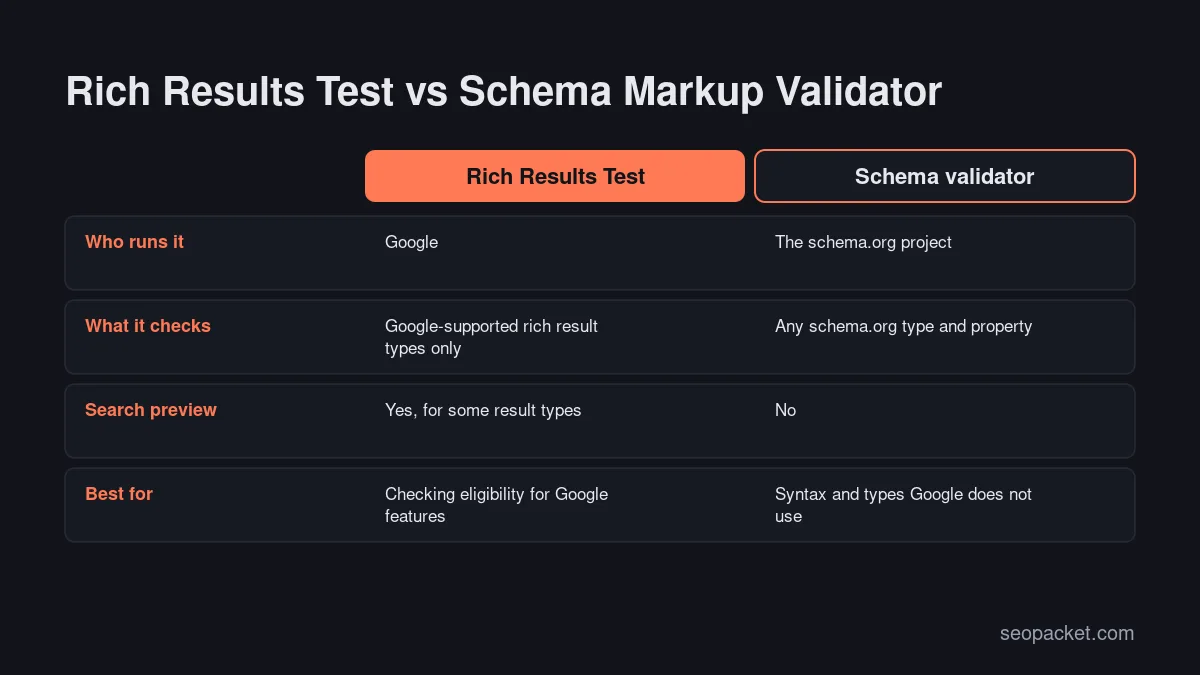
Use the Rich Results Test to check eligibility for Google’s rich results, the Schema Markup Validator to check any schema.org markup, URL Inspection to see what Google stored for one page, and Search Console’s reports to spot problems across the whole site. Each answers a different question.
| Tool | Best for | Scope | Limits |
|---|---|---|---|
| Rich Results Test | Google rich result eligibility | One URL or snippet | Only Google-supported types |
| Schema Markup Validator | Any schema.org markup | One URL or snippet | No Google eligibility or preview |
| URL Inspection | Indexed and live view of one page | Pages in your property | Needs a verified property |
| Search Console reports | Trends and issues site-wide | A sample of items | Updates after Google recrawls |
The Schema Markup Validator is the successor to Google’s old Structured Data Testing Tool, which Google moved to the schema.org community in 2021. Use it for types Google doesn’t turn into rich results, such as FAQPage now, or for markup meant for other search engines and apps. Soft Learn Hub, the company behind SEOPacket, has a step-by-step guide to using a schema markup validator for a deeper comparison.
URL Inspection shows the structured data Google found in the indexed page, and its live test shows what the current page would produce. Search Console’s rich result reports sit under Enhancements, with product snippets and merchant listings under Shopping.
What is a good structured data testing workflow after you publish?
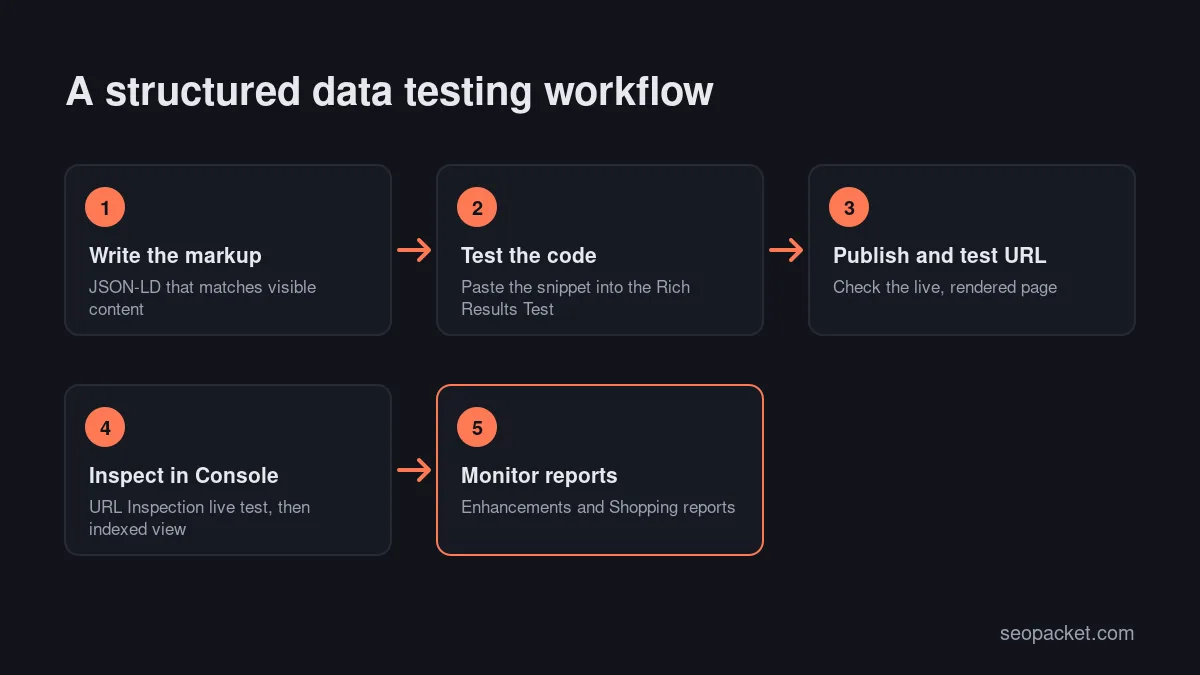
A reliable structured data testing workflow checks the markup three times: as code before you publish, as a live URL straight after, and in Search Console once Google has recrawled the page. Then you monitor the reports, so a theme or plugin update that breaks markup is caught within days, not months.
- Test the code before publishing. Paste the snippet into the Rich Results Test and clear every error.
- Test the live URL. Run the published page through the Rich Results Test on the smartphone user agent, with caching cleared.
- Run a URL Inspection live test. Confirm Google can fetch and render the page, then request indexing in Search Console if it’s new. Our guide to getting indexed by Google explains that step.
- Check the indexed view a few days later. Inspect the URL again and open the enhancements section to see what Google stored.
- Watch the Enhancements reports. After a fix, click Validate fix. Google says validation typically takes up to about two weeks.
- Retest after every theme or SEO plugin update. Plugins generate most WordPress markup, and an update can change it overnight.
- Check results in the Performance report. The search appearance filter shows impressions and clicks for each rich result type you’ve earned.
SEOPacket can take some of the legwork out of steps 3 and 4: its free Indexing check runs Google’s URL Inspection on up to 20 pages per click, shows whether each page is indexed and when Google last visited, and opens Search Console when you want to request indexing. Add structured data checks to your technical SEO checklist so they happen on every release.
Why doesn’t a page that passes the Rich Results Test get rich results?
A valid result means the page is eligible, not that Google will show a rich result. Google chooses per query and per device, and its structured data guidelines list reasons it may not: markup that doesn’t represent the main content, hidden content, misleading data or a page that breaks the guidelines.
Work through these checks in order:
- Is the page indexed and recrawled? Check the index status and last crawl date in URL Inspection.
- Does the markup describe visible content? Prices, ratings and questions must be on the page, not only in the code.
- Is the feature still live? Google has retired several types since 2023, including How-to, FAQ, course info and estimated salary.
- Is it device-specific? Breadcrumb rich results are desktop only.
- Is it query-specific? A product may show stars for some searches and a plain result for others.
Good to know: Google said in 2023 that structured data it doesn’t use causes no problems for Search. You don’t need to rush to remove unused FAQ or HowTo markup, though removing it keeps your code lean.
How does structured data fit into SEO and AI search?
Structured data isn’t a ranking shortcut, but it helps search engines understand what a page is about and which entities it describes. It’s also the entry ticket for rich results and a clear, machine-readable source of facts for any system that reads your pages. Treat structured data testing as one item in your on-page SEO checklist, alongside titles, headings and internal links.
AI search tools read the same pages. Clear facts on the page, consistent markup and direct answers make your content easier to understand and quote. Our explainer on GEO vs SEO covers how AI engines choose sources. SEOPacket’s free AI-search readiness score includes a structured data check next to crawler access, question headings, direct answers and llms.txt, so you can see gaps in one place.
Frequently asked questions
Is the Google Rich Results Test free?
Yes. The Rich Results Test is free and doesn’t need a Search Console account. You can test any public URL or paste a code snippet, and share the result with a link that stays valid for about 90 days.
What is the difference between the Rich Results Test and the Schema Markup Validator?
The Rich Results Test checks whether markup qualifies for Google’s supported rich result types and can preview some of them. The Schema Markup Validator, run by the schema.org project, checks any schema.org type and property but says nothing about Google eligibility. Use both for complete structured data testing, especially with types Google doesn’t support.
Do warnings in the Rich Results Test stop rich results from showing?
No. Warnings are non-critical issues, usually missing recommended properties, and the item stays eligible. Errors are critical and make the item invalid, so fix errors first and add recommended properties when you have the data.
Why does the Rich Results Test say no items detected for my FAQ markup?
FAQ is no longer a supported rich result type. Google limited FAQ rich results to well-known government and health sites in 2023 and stopped showing them from May 2026, so the test no longer reports FAQPage markup. You can still validate it with the Schema Markup Validator.
Can I use the Rich Results Test on a staging site?
Yes, with the Code option. Copy the rendered HTML or the JSON-LD from the staging page and paste it into the tool. URL tests only work on pages Google can reach anonymously, so password-protected or local pages need code mode or a tunnel.
How long do rich results take to appear after fixing Rich Results Test errors?
Google has to recrawl the page first, which can take days or weeks. For a site-wide issue, click Validate fix in the Search Console report; Google says validation typically takes up to about two weeks, and rich results are never guaranteed.

Leave a Reply