

- A technical SEO checklist confirms that search engines can crawl, render and index your pages, and that nothing in your setup quietly sends them away.
- Crawling and indexing come first. A stray noindex tag or a robots.txt rule can make every other fix on this list pointless.
- Most checks need only free tools: Google Search Console, Bing Webmaster Tools, PageSpeed Insights, the Rich Results Test and a site crawler.
- Run the full technical SEO checklist at launch and after redesigns or migrations, and a shorter crawl-and-indexing check every month.
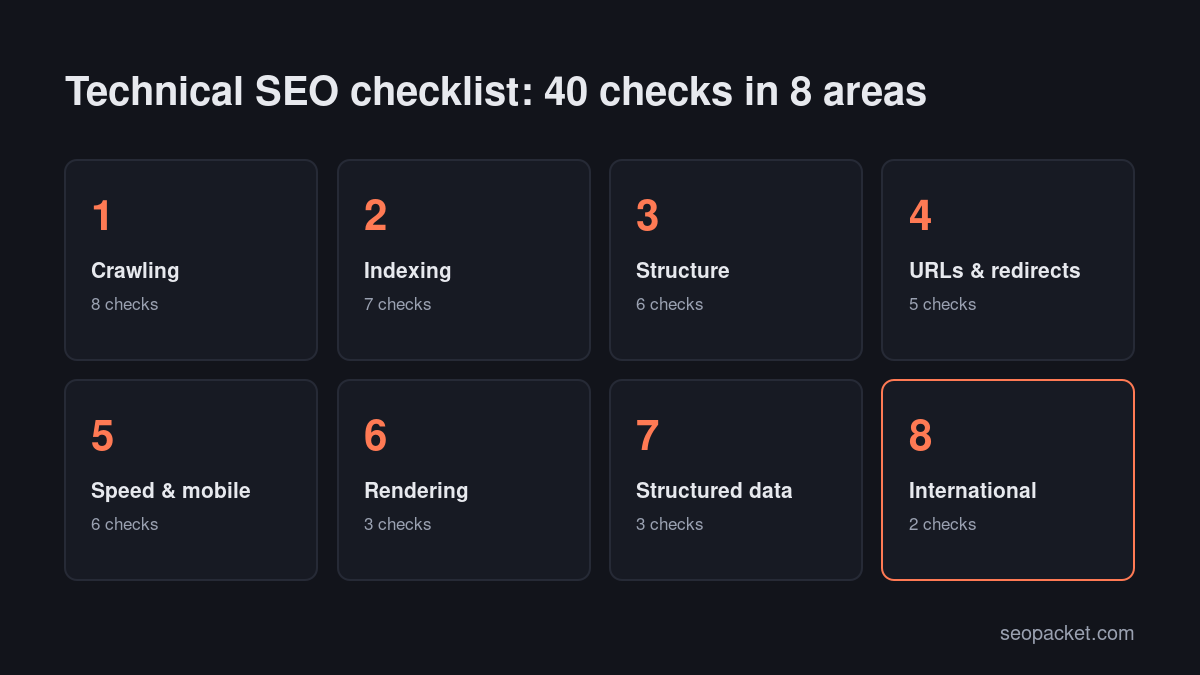
Technical SEO is the part of search optimization nobody sees until it breaks. A page can have the best content on the web and still get zero traffic because a plugin added a noindex tag, a redirect loops, or the text only appears after JavaScript that Googlebot never runs. This technical SEO checklist gives you 40 checks, grouped in the order that matters, with the report or tool to test each one.
It’s the detailed companion to our complete SEO checklist, which covers on-page, off-page and GEO as well. Here we go deeper into the technical side only. You don’t need to be a developer to run most of these checks, but you’ll want access to Search Console, your CMS settings and, ideally, someone who can edit server rules.
In this technical SEO checklist
What is a technical SEO checklist?
A technical SEO checklist is a list of checks that confirm search engines can find, crawl, render, index and understand your website. It covers infrastructure rather than content: robots.txt, sitemaps, status codes, canonical tags, redirects, site speed, mobile rendering, JavaScript and structured data. If some of those terms are new to you, Soft Learn Hub, the company that builds SEOPacket, explains sitemaps, crawl errors and canonical tags in plain English.
Think of it as the foundation under your content. Google’s SEO Starter Guide makes the point plainly: if Google can’t find and understand your pages, nothing else you do will help them appear in search.
Tools you need for a technical SEO audit
You can run almost this entire technical SEO audit with free tools:
- Google Search Console for the Page indexing report, URL Inspection, Core Web Vitals and sitemaps.
- Bing Webmaster Tools for Bing’s view of your site, which also feeds ChatGPT search and Copilot.
- PageSpeed Insights for lab and field speed data on individual URLs.
- Google’s Rich Results Test for structured data.
- A site crawler. SEOPacket’s site auditor crawls your site with a real browser for free and flags broken links, redirect chains, missing tags and pages that aren’t indexable. Desktop crawlers work too.
Crawling checks (1 to 8)
Crawling is how search engines discover your pages. If a crawler can’t reach a URL, it can’t index it.
- robots.txt exists and returns 200. Open
yoursite.com/robots.txt. A 5xx error can make Google pause crawling your whole site, as explained in Google’s robots.txt introduction. - No important sections are disallowed. Look for broad rules such as
Disallow: /or blocked folders like/blog/left over from staging. - CSS and JavaScript aren’t blocked. Google needs them to render pages. Blocking
/wp-content/or/assets/breaks rendering. - The sitemap is referenced in robots.txt with a full URL, for example
Sitemap: https://example.com/sitemap_index.xml. - The XML sitemap only lists indexable, canonical, 200-status URLs. No redirects, no 404s, no noindexed pages.
- Sitemaps are submitted in Search Console and Bing Webmaster Tools, and both show a recent successful read.
- No crawl traps. Calendars, filters and session IDs can generate endless URLs. Check your crawler’s report for thousands of near-identical parameter URLs.
- Server errors are rare. Search Console’s Crawl stats report shows host status and the share of 5xx responses. Anything above a trickle needs your host’s attention.
Indexing checks (9 to 15)
Crawled doesn’t mean indexed. These checks make sure the right pages are stored in the index and the wrong ones aren’t.
- No accidental noindex. Check the Page indexing report for “Excluded by ‘noindex’ tag” and make sure every URL listed there should be excluded.
- Search engine visibility is on in your CMS. In WordPress, Settings > Reading must not have “Discourage search engines” ticked.
- Canonical tags point to the right URL. Each page should have a self-referencing canonical unless it’s a true duplicate. Google explains the options in its guide to consolidating duplicate URLs.
- Google agrees with your canonical. In URL Inspection, compare “User-declared canonical” with “Google-selected canonical”. A mismatch means Google sees a stronger duplicate somewhere.
- Thin and duplicate pages are handled. Tag archives, empty categories and printer-friendly versions should be noindexed, merged or removed.
- Key pages are actually indexed. Run URL Inspection on your homepage, top service pages and newest posts. If any aren’t, work through our guide to getting pages indexed by Google.
- “Crawled, currently not indexed” is reviewed. Pages here were seen and rejected. Improve them, link to them better, or consolidate them.
Site structure and internal linking checks (16 to 21)
Structure tells search engines which pages matter most and how topics relate.
- Important pages are within three clicks of the homepage. Deeply buried pages get crawled less often.
- No orphan pages. Every page you want indexed should have at least one internal link from another indexable page. Compare your sitemap with your crawl to find orphans.
- Internal links use descriptive anchor text, not “click here”.
- No broken internal links. Fix or remove links that return 404, and update links that point at redirects.
- Navigation is crawlable HTML. Menus built only with JavaScript click handlers, without real
links, may not be followed. - Breadcrumbs are in place on deep pages, with BreadcrumbList schema, so both users and crawlers understand the hierarchy.
URL and redirect checks (22 to 26)
- One version of the site.
http,https,wwwand non-wwwshould all 301 to a single preferred version. - URLs are short, lowercase and readable, using hyphens between words.
- No redirect chains or loops. Each old URL should redirect in one hop to its final destination.
- Permanent moves use 301 or 308 redirects, not 302s or JavaScript redirects. Google’s guide to site moves with URL changes covers the details.
- Real 404s return a 404 status. A “page not found” message served with a 200 status is a soft 404 and wastes crawling.
Speed and mobile checks (27 to 32)
Page experience isn’t the strongest ranking signal, but slow, unstable pages lose visitors and conversions, and very slow servers get crawled less.
- Core Web Vitals pass on mobile. Check the Core Web Vitals report in Search Console, based on real Chrome users. Google’s Web Vitals overview explains the LCP, INP and CLS thresholds.
- Largest Contentful Paint under 2.5 seconds. Usually fixed with caching, a faster server, compressed hero images and preloading the LCP image.
- Layout shift under 0.1. Set width and height on images and reserve space for ads and embeds.
- Images are compressed and sized for the space they fill, served as WebP or AVIF where possible.
- Pages work on mobile. Text is readable without zooming, tap targets aren’t cramped, and there’s no horizontal scrolling. Google indexes the mobile version of your site.
- HTTPS everywhere. A valid certificate, no mixed-content warnings, and internal links that point straight to HTTPS URLs.
If you run WordPress, our guide to improving Core Web Vitals on WordPress covers the ten fixes that make the biggest difference.
Rendering and JavaScript checks (33 to 35)
- Main content is in the rendered HTML. Use URL Inspection’s “View crawled page” to confirm Google sees your text, links and images.
- Important links and content don’t depend on user actions such as clicks or scrolls to load.
- Lazy loading doesn’t hide content. Native
loading="lazy"on below-the-fold images is fine; content that only loads on scroll events may be missed. Google’s JavaScript SEO basics explain how rendering works.
Structured data checks (36 to 38)
- Sitewide Organization and WebSite schema with your name, logo and URL, so search and AI engines connect your brand to your site.
- Page-level schema matches the page. Article or BlogPosting on posts, Product on product pages, FAQPage only where the questions are visible on the page.
- No errors in the Rich Results Test or in Search Console’s Enhancements reports. Invalid markup is ignored.
International checks (39 to 40)
- hreflang is correct if you have language or regional versions. Every version points at every other version and itself, including an
x-default. - No automatic redirects by IP or browser language. Crawlers mostly come from the US; forced redirects can hide your other versions from them.
Technical SEO for WordPress sites
WordPress handles a lot of technical SEO for you, but it also introduces its own traps. If your site runs on WordPress, add these points to your technical SEO checklist.
- Use one SEO plugin, not two. Running Rank Math and Yoast together duplicates titles, canonicals and schema. Pick one and deactivate the other.
- Check the sitemap your plugin generates. Most SEO plugins create
sitemap_index.xmlautomatically. Make sure it excludes tag archives, attachment pages and any post types you don’t want indexed. - Redirect attachment pages. WordPress creates a separate URL for every uploaded image. These thin pages should redirect to the file or the parent post.
- Watch for noindex after updates. Theme and plugin updates occasionally change archive or post type settings. A quick crawl after major updates catches it.
- Cache carefully. Page caching and minification speed pages up, but aggressive JavaScript delay settings can break menus, forms and consent banners. Test key pages after changing cache settings.
- Keep plugins lean. Every plugin adds scripts or database queries. Remove anything you don’t use, especially page builders and sliders on pages that don’t need them.
How to prioritise technical SEO fixes
A long technical SEO audit report can list hundreds of issues. Don’t try to fix them in the order a tool lists them. Instead, rank each issue by two questions: how many important pages does it affect, and does it stop those pages from being crawled or indexed?
- Blocking issues first. Anything that stops important pages being crawled or indexed: robots.txt blocks, noindex tags, server errors, broken canonicals.
- Sitewide issues second. Problems in templates affect every page at once, so one fix pays off many times. Missing canonicals in a post template or a slow header script are good examples.
- High-value pages third. Fix issues on the pages that earn or could earn the most traffic and conversions before touching old archive pages.
- Cosmetic issues last. Missing alt text on decorative images or slightly long meta descriptions are worth tidying, but they rarely move rankings on their own.
This is how SEOPacket’s site auditor orders its report: the three problems that matter most sit at the top, with the long tail below.
Technical SEO and AI search
The same technical foundations decide whether AI assistants can use your pages. ChatGPT search, Perplexity and Google’s AI features all depend on pages that can be crawled, rendered and indexed, and they read structured data to understand who you are. Two extra checks belong in a modern technical SEO checklist: make sure robots.txt allows AI search crawlers you want to be cited by, and make sure your key pages answer their main question in plain text near the top, not inside tabs or images.
How to run a technical SEO audit step by step
Working through the technical SEO checklist in order saves time, because early problems cause later ones.
- Crawl the site. Start with a full crawl to get a list of every URL, its status code, indexability, canonical and internal links.
- Compare the crawl with the sitemap and Search Console. URLs in the sitemap but not in the crawl are orphans; URLs in the crawl but not the sitemap may be duplicates or junk.
- Fix crawling and indexing first. These checks (1 to 15) decide whether anything else matters.
- Then structure and redirects, which shape how crawl budget and link equity flow.
- Then speed, rendering and schema, which affect how pages perform once they’re indexed.
- Re-crawl and request indexing for the most important fixed URLs, then watch the Page indexing report over the next few weeks.
How often should you run a technical SEO checklist?
Run the full technical SEO checklist when you launch a site, redesign it, change CMS, change domain or migrate to HTTPS. After that, a monthly crawl plus a look at the Page indexing and Core Web Vitals reports catches most problems before they cost traffic. Also run a quick crawl after any large plugin, theme or template change, because that’s when noindex tags and broken canonicals most often appear.
Common technical SEO mistakes
- Launching with the staging robots.txt. The single most common reason a new site gets no traffic.
- Redirecting everything to the homepage during a migration, instead of mapping old URLs to their closest new equivalent.
- Canonicalising paginated pages to page one, which hides the products or posts on later pages.
- Adding schema that isn’t on the page, such as FAQ markup for questions users can’t see.
- Chasing a perfect speed score instead of passing Core Web Vitals for real users.
- Blocking AI search crawlers by accident with an overly broad robots.txt rule, which can stop ChatGPT search and Perplexity from citing you. Our GEO vs SEO guide explains which bots to allow.
Technical SEO checklist at a glance
| Area | Checks | Where to test |
|---|---|---|
| Crawling | robots.txt, sitemaps, crawl traps, server errors | robots.txt, Crawl stats, site crawler |
| Indexing | noindex, canonicals, duplicates, indexed key pages | Page indexing report, URL Inspection |
| Structure | click depth, orphans, internal links, breadcrumbs | Site crawler |
| URLs and redirects | one host version, chains, 301s, soft 404s | Site crawler, HTTP header check |
| Speed and mobile | Core Web Vitals, images, HTTPS, mobile layout | Search Console, PageSpeed Insights |
| Rendering | content and links in rendered HTML | URL Inspection, View crawled page |
| Structured data | Organization, page schema, no errors | Rich Results Test, Enhancements reports |
| International | hreflang, no forced redirects | hreflang validator, manual checks |
SEOPacket’s free site crawl runs a big part of this technical SEO checklist automatically and puts the three most important problems first. Create an account and you also get a $1 credit to try rank checks or keyword research before spending your own money.
Frequently asked questions
What should a technical SEO checklist include?
A technical SEO checklist should cover crawling (robots.txt, sitemaps, server errors), indexing (noindex, canonicals, duplicates), site structure and internal links, URLs and redirects, speed and mobile, JavaScript rendering, structured data and, for multilingual sites, hreflang.
How long does a technical SEO audit take?
A small site of a few hundred pages can be audited in a few hours with a crawler and Search Console. Large ecommerce or news sites can take days, mostly spent analysing crawl data and prioritising fixes.
Can I do technical SEO without a developer?
Many checks, such as sitemaps, noindex settings, redirects in a plugin and image compression, can be handled in your CMS. Server errors, JavaScript rendering problems and complex redirects usually need a developer or your host.
What is the most important technical SEO check?
Making sure your important pages are crawlable and indexable. A blocking robots.txt rule or a noindex tag stops a page from appearing in search at all, so check those before anything else.
How is technical SEO different from on-page SEO?
Technical SEO makes sure search engines can crawl, render and index your site. On-page SEO optimises the content and HTML of individual pages, such as titles, headings, internal links and images, so they match what searchers want.

Leave a Reply