

- Getting a page indexed by Google takes three separate steps: Google has to discover the URL, crawl it, and then decide to index it.
- First rule out blockers: a noindex tag, a robots.txt disallow, or a canonical pointing somewhere else.
- Use URL Inspection to request indexing, keep the page in your XML sitemap, and link to it from a page that is already indexed by Google.
- Most new pages are indexed within days to a few weeks, but Google never guarantees indexing, and repeated requests don’t speed it up.
In this guide
Getting a new page indexed by Google is not automatic. Publishing a page does not mean Google has seen it: discovery, crawling and indexing are three separate steps, and any one of them can stall. If a page you launched days or weeks ago still doesn’t show up in search, this guide explains how to check its status, the six steps that get pages indexed faster, and what each Search Console status actually means.
Everything here applies to any website, but the examples focus on WordPress, where a single setting or plugin default is often the reason a page never appears.
How does Google indexing work?
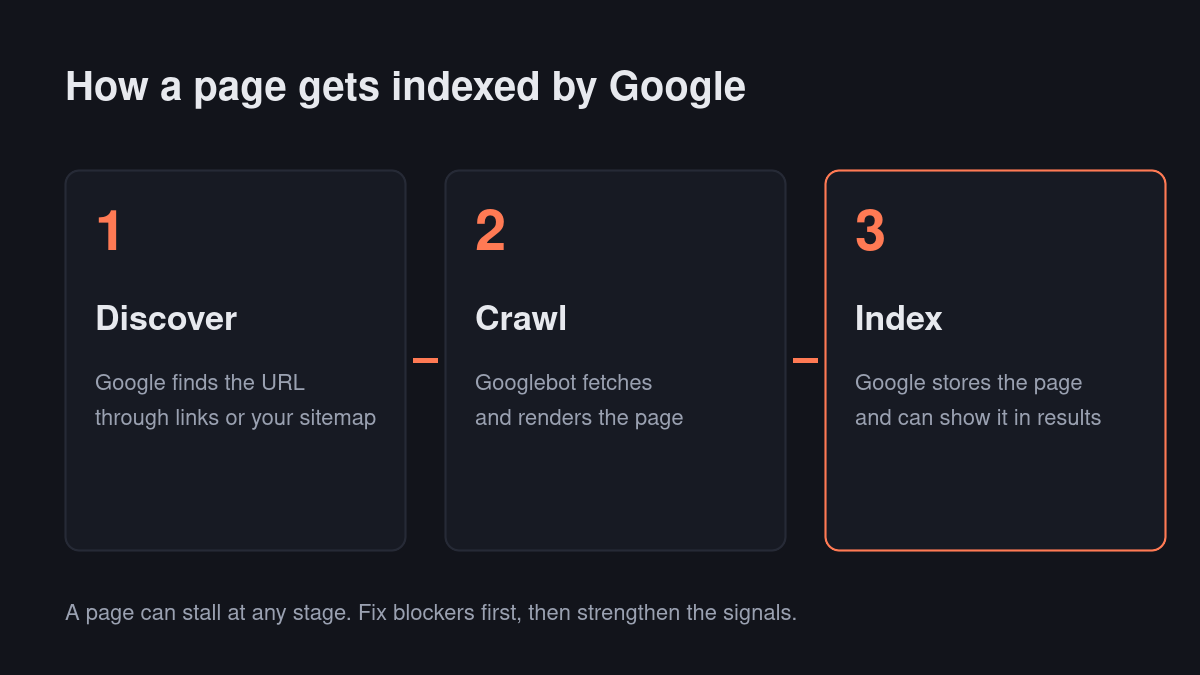
Google indexing is the process of Google storing a page in its search index so it can be shown in results. Google’s own guide to how Search works describes three stages:
- Discovery. Google learns a URL exists, usually by following a link from a page it already knows or by reading your XML sitemap.
- Crawling. Googlebot fetches the page, and renders it much like a browser would, including running JavaScript.
- Indexing. Google analyses the content, decides whether it is useful and not a duplicate, picks the canonical version, and stores it.
A page can fail at any stage. Pages that are never discovered have no path in; pages that are crawled can still be left out of the index if Google judges them thin, duplicated or low priority.
How to check if a page is indexed by Google
The quickest informal check is a site: search, such as site:example.com/your-page/. It is useful, but it is not reliable enough to diagnose problems: it can omit pages that are indexed and show nothing about why a page is missing.
For an accurate answer, use the URL Inspection tool in Google Search Console. It shows whether the page is on Google, when it was last crawled, which canonical Google selected, and any error that stopped indexing. For a site-wide view, the Page indexing report groups every known URL by status.
If you need a Google index checker for many pages at once, SEOPacket’s Indexing module runs URL Inspection on up to 20 pages per click for free and explains each result in plain words.
6 steps to get pages indexed by Google faster
Work through these in order. The first steps remove hard blockers; the later ones strengthen the signals that make Google want to index the page.
1. Confirm it isn’t blocked
Check the page itself for a noindex meta tag or X-Robots-Tag header. A surprising number of “why isn’t this indexed” cases turn out to be a staging-site setting left on, or an SEO plugin defaulting a post type or taxonomy to noindex. Also check robots.txt for a disallow rule that quietly covers the URL pattern, and make sure the canonical tag points to the page itself rather than another URL.
2. Submit the URL directly
Don’t wait for the crawler to find a link to the page on its own. In Google Search Console, open URL Inspection and click “Request indexing” for the specific URL. This doesn’t guarantee same-day indexing, but it moves the page into Google’s crawl queue instead of leaving it to be discovered incidentally. Requesting it again and again does not help; there is a daily quota and it doesn’t raise priority.
3. Make sure it’s in your sitemap
An XML sitemap is the clearest signal you can give Google about which URLs exist and matter. If you’re running Rank Math, Yoast or a similar SEO plugin, confirm the new page actually appears in /sitemap_index.xml, not just that a sitemap exists. A page excluded by a category or post-type setting in the plugin will never show up there. Submit the sitemap once in Search Console; Google rereads it on its own afterwards.
4. Link to it from an already-indexed page
Google finds new URLs primarily by following links from pages it already knows. A brand-new page with zero internal links pointing to it is effectively invisible to a crawler that hasn’t been told to look there. Add a link from your highest-traffic related post, your navigation, or a relevant category page, using descriptive anchor text.
5. Check Core Web Vitals and mobile usability
Google can crawl a page and still choose not to index it if it looks broken or low quality, especially on mobile, which is the version Google indexes. A page that is very slow, hides content on small screens, or relies on scripts that fail to render is more likely to sit in “Discovered – currently not indexed” indefinitely. Our guide to WordPress Core Web Vitals fixes covers the most common speed problems.
6. Give it real, non-duplicate content
Thin or near-duplicate pages, such as a product variant with three words changed or a tag archive with no unique copy, are deprioritised by design. If the page overlaps heavily with an existing indexed page, Google may simply decide it isn’t worth a separate index entry. Make each page answer a distinct question with enough depth that it stands on its own.
What do the Search Console indexing statuses mean?
The Page indexing report uses specific labels for pages that are not indexed by Google. These are the ones you’ll see most often, and what to do about each:
| Status | What it means | What to do |
|---|---|---|
| Discovered – currently not indexed | Google knows the URL but hasn’t crawled it yet | Add internal links, keep it in the sitemap, improve site speed |
| Crawled – currently not indexed | Google fetched the page but chose not to index it | Improve and differentiate the content, then request indexing |
| Excluded by ‘noindex’ tag | The page tells Google not to index it | Remove the noindex if the page should rank |
| Blocked by robots.txt | A robots.txt rule stops Google from crawling it | Edit robots.txt to allow the URL |
| Duplicate without user-selected canonical | Google treats it as a copy of another page | Add a canonical tag or merge the pages |
| Page with redirect | The URL redirects elsewhere | Normal for old URLs; link and list the final URL instead |
| Soft 404 | The page looks empty or like an error to Google | Add real content or return a proper 404 |
WordPress settings that stop pages being indexed
On WordPress, a handful of settings account for most pages that never get indexed by Google. Check these first:
- Search engine visibility. Under Settings → Reading, “Discourage search engines from indexing this site” must be unticked on the live site.
- SEO plugin defaults. Rank Math and Yoast let you set noindex per post type and taxonomy; a post type set to noindex applies to every new post of that type.
- Coming-soon and maintenance plugins. These often return a placeholder page or a 503 status to Googlebot until switched off.
- Password protection. Password-protected posts and staging environments behind basic authentication can’t be crawled.
- Security and firewall rules. Aggressive bot blocking or rate limiting can stop Googlebot, so check your firewall logs if crawl stats drop.
How to request Google indexing in Search Console
Requesting indexing takes less than a minute once your site is verified in Search Console:
- Open Google Search Console and select your property.
- Paste the full URL into the inspection bar at the top of the screen and press Enter.
- Read the result. If it says “URL is on Google”, the page is already indexed by Google and there’s nothing to do.
- If it says “URL is not on Google”, click “Test live URL” to confirm Google can fetch and render the current version.
- If the live test passes, click “Request indexing”. Google confirms the URL has been added to a priority crawl queue.
If the live test fails, fix what it reports first. Requesting indexing for a page Google can’t fetch only wastes your daily quota.
Does crawl budget affect Google indexing?
For most small and medium sites, no. Crawl budget is the number of URLs Google is willing and able to crawl on your site in a given period, and it only becomes a real constraint on very large sites or sites that generate huge numbers of URLs, for example through filters, search pages or calendar archives. If your site has a few hundred or a few thousand pages and they aren’t being indexed, the cause is almost always quality, duplication or a technical blocker rather than crawl budget.
You can still help Google spend its crawling time well: keep low-value URLs such as internal search results out of the index, avoid endless parameter combinations, fix redirect chains, and keep your server fast. A site that responds quickly gets crawled more.
How to get a brand-new site indexed by Google
A brand-new domain has no links pointing at it, so Google has no reason to visit often. On launch day, verify the domain in Search Console, submit your sitemap, and request indexing for the homepage and your three to five most important pages. Then give Google a path in from the wider web: create your business profiles, list the site in relevant directories, and share your first posts where your audience already spends time. Each genuine link and mention gives crawlers another way to discover the site and signals that it’s worth indexing.
What to do if a page drops out of Google’s index
Pages that were once indexed by Google can disappear. Inspect the URL and look at the reason first. The usual causes are a noindex tag added by a plugin update, a new canonical pointing elsewhere, the page returning an error during a server problem, or Google deciding the content is now thin or duplicated compared with newer pages on your site. Fix the cause, confirm the live test passes, and request indexing once.
How long does it take to get indexed by Google?
A well-linked page on an established, fast, mobile-friendly site with a clean sitemap is often indexed within a day or two of an indexing request. A page on a brand-new domain with few internal links can take substantially longer, sometimes weeks, regardless of how many times you resubmit it. Speed comes from fixing the underlying signals, not from repeatedly clicking “Request indexing.”
How internal linking helps pages get indexed by Google
Internal links do two jobs for Google indexing. They let crawlers discover new pages, and they tell Google how important a page is relative to the rest of your site. A page linked from your homepage and several popular posts looks important; a page reachable only through a paginated archive five clicks deep looks like an afterthought, and Google treats it that way.
Every time you publish, add links to the new page from two or three older, already-indexed posts on related topics, using anchor text that describes what the new page covers. Keep your most important pages within three clicks of the homepage, and use category pages with a short introduction rather than empty lists of links. On WordPress, a related-posts block or a “further reading” line at the end of each post keeps this habit going without extra work.
Google indexing checklist
Run through this list whenever a page isn’t indexed by Google as quickly as you expect:
- The page returns HTTP 200, not a redirect or an error
- No noindex tag or X-Robots-Tag header on the page
- robots.txt allows Googlebot to crawl the URL and its CSS and JavaScript
- The canonical tag points to the page itself
- The page appears in your XML sitemap, and the sitemap is submitted in Search Console
- At least two internal links point to it from pages that are already indexed
- The main content is visible in the rendered HTML in URL Inspection’s live test
- The content is substantial and clearly different from every other page on your site
- The page loads quickly and works properly on mobile
- You’ve requested indexing once, and then left Google time to act
Should you use the Indexing API or instant indexing tools?
Google’s Indexing API is officially supported only for pages with JobPosting or BroadcastEvent structured data. Using it for ordinary blog posts is outside Google’s guidelines, and services that promise to “force” indexing for any page should be treated with caution.
For Bing and Yandex, IndexNow is a legitimate, open protocol that notifies search engines when a URL is added or updated. Rank Math and several other plugins support it with a single setting, and it’s worth enabling because Bing’s index also feeds ChatGPT search and Microsoft Copilot.
The honest summary is that there is no shortcut Google endorses beyond the ones in this guide. Pages get indexed by Google quickly when they are easy to discover, easy to crawl, and clearly worth storing. Paying for a service that promises instant results for every URL risks your site’s reputation for, at best, a temporary gain. Put that effort into internal links, a clean sitemap and content that deserves a place in the index instead.
If you manage several sites, or publish often, a Google index checker that inspects many URLs at once saves hours of manual work in Search Console and catches problems before they cost you traffic.
Frequently asked questions
How long does Google take to index a new page?
Anywhere from a few hours to several weeks. Well-linked pages on sites Google crawls often tend to be indexed faster, but there is no guaranteed timeline.
Does “Request indexing” guarantee my page gets indexed by Google?
No. It asks Google to crawl the URL sooner, but Google still decides whether the page is worth indexing based on quality, duplication and technical signals.
What does “Crawled – currently not indexed” mean?
Google fetched the page but chose not to index it yet, usually because it looks thin, duplicated, or low priority compared with other pages on the site. Improve and differentiate the content, then request indexing again.
How can I check the index status of many pages at once?
Search Console’s Page indexing report shows site-wide status. SEOPacket’s Indexing module runs URL Inspection on up to 20 pages per click for free and explains each result.
Why is my site: search showing pages that Search Console says aren’t indexed?
The site: operator is an approximation and can show stale or partial results. Search Console’s URL Inspection tool reflects Google’s actual index status, so trust it when the two disagree.

Leave a Reply