

- HTTP 404 Not Found means the server has no page at the requested URL. It’s a normal response, and Google says 404s generally don’t hurt the rest of your site’s performance in search.
- Fix the 404 errors that matter: internal links pointing to missing pages, moved pages without redirects, URLs in your sitemap and old URLs with valuable backlinks.
- Redirect with a 301 only when a true equivalent page exists. Redirecting every missing URL to the home page creates soft 404s.
- A custom 404 page should help people find what they wanted and still return a real 404 status code, which WordPress’s 404 template does by default.
HTTP 404 Not Found is the status code a server returns when there is no page at the requested URL: the server works, but it has nothing to show for that address. A 404 error is normal on every website, and Google says 404s generally don’t harm your site in search. The ones worth fixing are those that break internal links, waste valuable backlinks or hide pages that should exist.
This guide explains what an HTTP 404 means, when it’s harmless, what a soft 404 is, how to choose between 404, 410 and a 301 redirect, how to find the 404s that matter, and how to build a helpful 404 page in WordPress that still sends the right status code.
In this HTTP 404 guide
What does HTTP 404 Not Found mean?
A 404 Not Found response means the server didn’t find a current page at that URL, or isn’t willing to say whether one exists. According to RFC 9110, a 404 doesn’t say whether the condition is temporary or permanent; the 410 Gone code is preferred when the server knows the page is permanently gone.
Visitors see it in many forms: a plain “404 Not Found” line from the server, a branded “Page not found” template from your theme, or a friendly message with a search box. What matters for browsers and search engines is the HTTP status code sent in the response headers, not the words on the page.
Definition: A 404 error is the HTTP status code 404 (Not Found). It’s a client error in the 4xx range, meaning the request reached a working server but asked for something that doesn’t exist there. A broken link is any link that points to a URL returning a 404.
Common causes of a 404 error are deleted posts, changed permalinks, typos in links, old URLs left over from a redesign or migration, and links from other sites that were never correct in the first place.
What causes 404 errors in WordPress?
Most WordPress 404 errors come from content changes rather than technical faults: a post deleted or moved to the trash, a slug edited after publishing, a new permalink structure or category base, a page converted to a different post type, or URLs left behind by a previous platform or theme.
WordPress helps with one of these. When you change a published post’s slug, it remembers the old one and redirects visitors to the new address. It doesn’t reliably cover the other changes, so plan redirects whenever you restructure URLs.
A few less obvious sources are worth knowing:
- Changed permalink settings after a site has been live, which change every post URL at once.
- Deleted media files that are still embedded or linked in older posts.
- Plugins that created URLs, such as event, portfolio or shop plugins, then got deactivated.
- Hard-coded links in menus and widgets that still point at a staging domain or an old path.
Are HTTP 404 errors bad for SEO?
Usually not, because Google’s Search Console help on 404 errors says that, in general, they won’t affect your site’s search performance and can be ignored when the URLs shouldn’t exist. A deleted page with no replacement should return a 404 or 410; that’s the correct answer.
What Google does is simple. A URL that returns an HTTP 404 isn’t indexed, and if it was indexed before, it’s removed. Googlebot may keep checking it for a while, less and less often; Google’s Page indexing report help notes there’s no way to make it permanently forget a URL. None of that affects your other pages.
For visitors, though, every broken link is a small failure: they wanted something and got an error. So focus on the 404s people actually reach through your own links, search results or other sites, not on the total number shown in a report.
A 404 error becomes a real problem in five situations:
| 404 error situation | Why it matters | What to do |
|---|---|---|
| Internal links point to the 404 | Visitors hit dead ends, and crawlers waste requests | Update the links to a live URL |
| A page moved without a redirect | Visitors and links to the old URL are lost | Add a 301 to the new URL |
| The URL is in your XML sitemap | You’re asking Google to index a missing page | Remove it, or restore the page |
| The old URL has valuable backlinks | Links from other sites now lead nowhere | 301 to a true equivalent, if one exists |
| An important page was deleted by mistake | Traffic and rankings disappear | Restore the page at the same URL |
If none of these applies, for example a URL someone mistyped or a page you removed on purpose, leave the 404 error alone. Google’s help even suggests the report should stop showing such 404s after about a month.
What is a soft 404?
A soft 404 is a page that tells visitors “not found”, or has little or no content, but returns a 200 OK status instead of HTTP 404. Google’s systems spot many of these and list them as “Soft 404” in the Page indexing report, and they don’t get indexed. They confuse both people and search engines.
The common WordPress sources:
- “Redirect all 404s to the home page” plugins. Google’s 404 help warns that sending missing URLs to the home page instead of returning a 404 can be problematic.
- A normal page used as the error page. Some setups show a “Page not found” page that returns 200.
- Empty archives and searches. Tag pages, category pages or internal search results with “Nothing found” and no other content.
- Pages that fail to render. If scripts or resources fail, Google may see an empty page even though visitors don’t.
To fix a soft 404, decide what the page really is. If the content is gone, return a real 404 or 410. If the page is meant to exist, give it substantial, useful content. If it should exist but renders empty, run a URL Inspection live test and view the tested page to see what Google receives.
Watch out: a plugin that redirects every 404 error to your home page doesn’t fix anything. It hides problems from you, frustrates visitors who wanted something specific, and Google may treat those redirects as soft 404s anyway.
404 Not Found vs 410 vs 301: which should you use?
Use a 404 Not Found response when a page is missing and you don’t know it’s gone for good, a 410 when you’ve removed it on purpose and it won’t come back, and a 301 redirect only when the content has moved or a page exists that does the same job. The deciding question is whether a true equivalent exists.
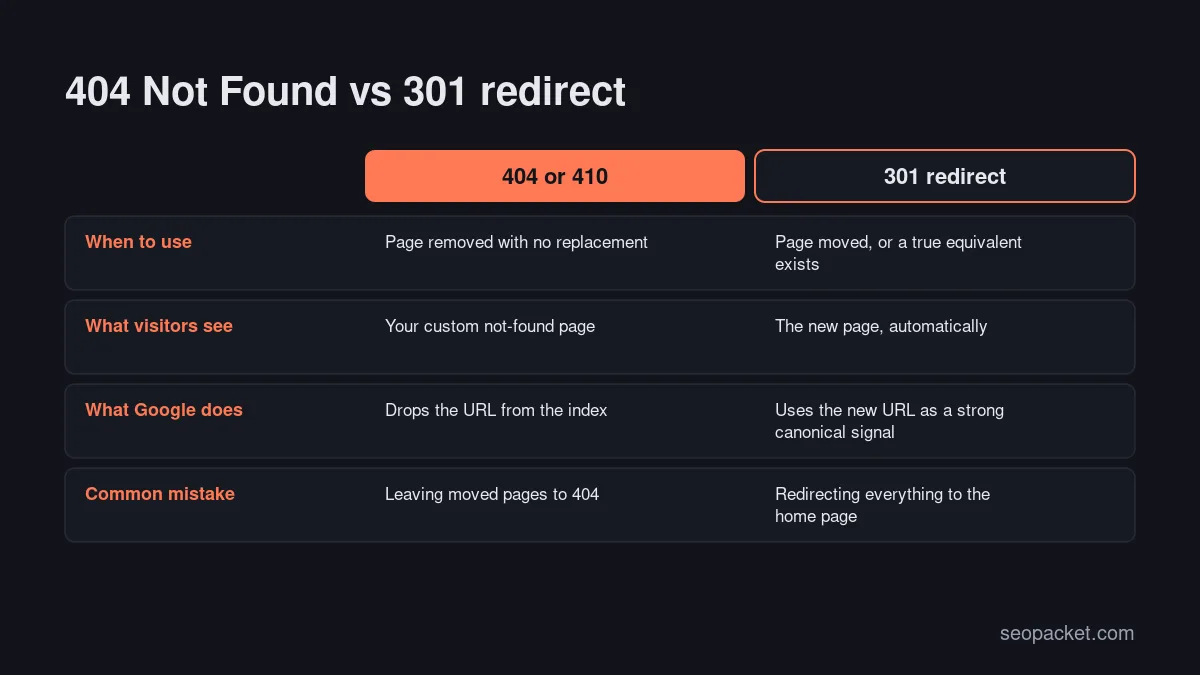
| What happened to the page | Best response | Why |
|---|---|---|
| Moved to a new URL | 301 redirect to the new URL | Visitors and signals follow the move |
| Merged into a better page | 301 redirect to that page | It answers the same need |
| Deleted, no replacement | 404 Not Found or 410 | The honest answer; Google drops it |
| Expired campaign or product, gone for good | 410 Gone | Says the removal is deliberate |
| URL never existed (typo, spam link) | 404 Not Found | Nothing to fix |
| Common misspelling of a live URL | 301 to the correct URL | Google’s help suggests mapping these |
Should you prefer 410 over 404? Google’s 404 help says that, currently, Google treats 410s the same as 404s. Use 410 if it’s easy and you want to be explicit, but don’t spend days converting old 404s.
A redirect to a loosely related page, such as a category page for a deleted product, is a judgement call. If a visitor would be happy to land there, redirect. If they’d be confused, a helpful 404 page that links to the category does the job better.
How do you find 404 errors on your site?
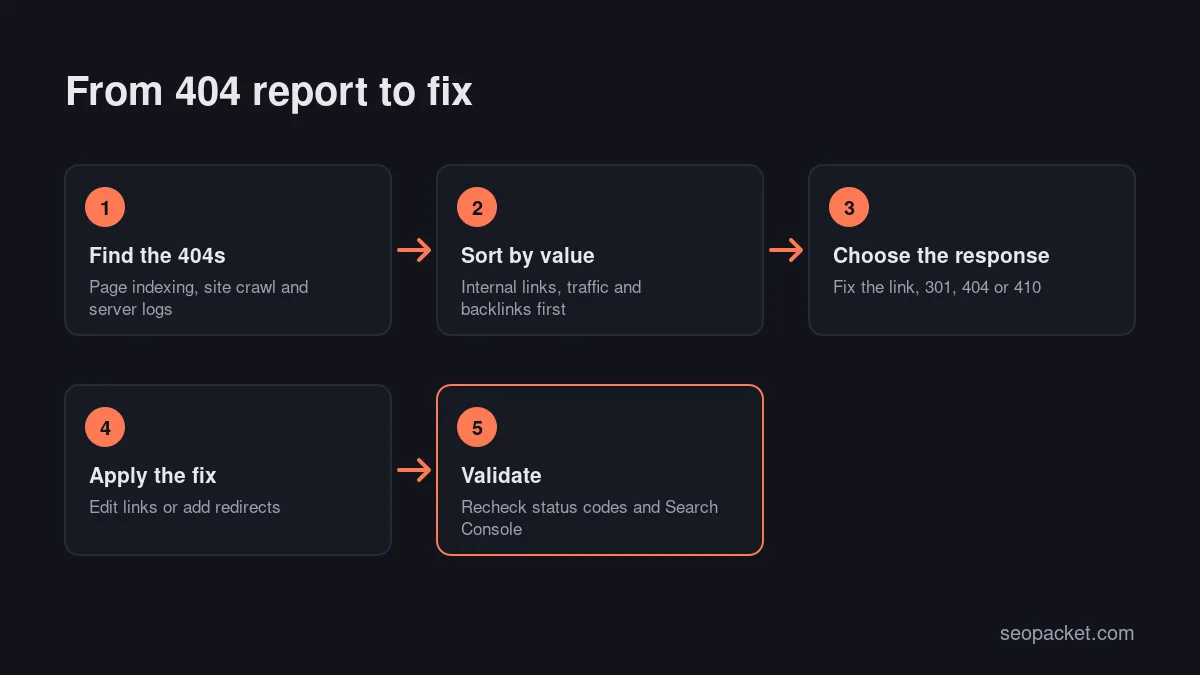
Use four sources together: Search Console’s Page indexing report for the 404s Google found, a site crawl for broken internal links, your server logs for real requests from people and bots, and a 404 log in WordPress. Each one catches problems the others miss.
- Search Console. Open Indexing › Pages and click “Not found (404)”. Inspect important URLs to see how Google discovered them, such as a referring page or a sitemap.
- A site crawl. A crawler follows every internal link and reports which ones lead to a 404 error, and on which page each link sits. SEOPacket’s free site crawl flags 4xx pages, covering 500 pages by default and up to 10,000 for a verified site in Advanced view.
- Server logs. Filter for status 404 and sort by number of requests. Check the referrer column to spot external links pointing at missing URLs.
- A 404 log in WordPress. The free Redirection plugin records 404 errors as they happen, and Rank Math has a 404 monitor module.
- Backlink data. Check which of your URLs that return a 404 error have links from other sites. These are the ones most worth redirecting.
Sort the list by value: internal links first, then URLs with traffic or backlinks, then the rest. A long tail of random 404 errors from bots probing for files like old admin pages is normal and safe to ignore.
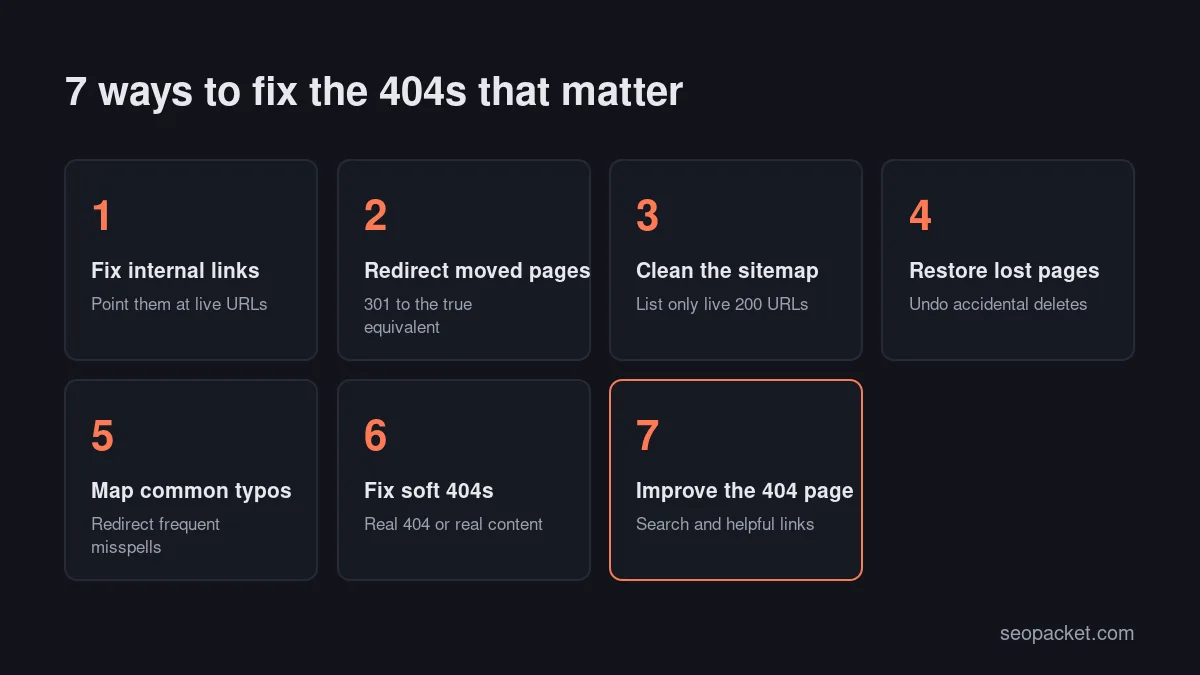
How do you fix 404 errors? 7 essential fixes
Fix the source, not just the symptom. A redirect helps people who follow an old link, but the cleanest fix for an internal link is to change the link itself, so nobody, human or crawler, needs a redirect at all.
- Fix internal links. Edit the post, menu or widget and point the link at the live URL. If you changed a permalink, our guide to WordPress permalinks explains how to update links and redirect safely.
- Redirect moved pages. Add a 301 from the old URL to the new one, and update internal links too.
- Clean the sitemap. Your sitemap should list only live URLs that return 200. Most SEO plugins update it automatically; check for custom entries.
- Restore lost pages. If an important page was deleted by mistake, restore it from the trash or a backup at the same URL.
- Map common typos. If logs show many visits to a misspelled URL, redirect it to the correct page.
- Fix soft 404s. Return a real 404 error for missing content, or add real content to pages that should exist.
- Improve the 404 page. Give visitors who still land on a 404 a clear way forward.
Broken internal links are also a site structure issue. Pages that lose their links become harder to find, which is why a planned structure, like the one in our guide to SEO silos, makes 404s rarer. Add a broken-link check to your technical SEO checklist and run it monthly.
How do you build a helpful custom 404 error page in WordPress?
Edit your theme’s 404 template rather than creating a normal page, because WordPress serves that template with a real 404 status. A good 404 page says plainly that the page wasn’t found, offers a search box, links to your most useful pages, and keeps your normal header and navigation.
In a block theme, go to Appearance › Editor › Templates and open the 404 template (often labelled “Page: 404”). In a classic theme, the file is 404.php; the WordPress template hierarchy explains how WordPress picks the 404 template and falls back to index when there isn’t one.
What to include:
- A clear, human message. “Sorry, we can’t find that page” works better than technical jargon.
- A search box, so visitors can look for what they wanted.
- Links to popular content and main categories, chosen for your audience rather than a random list.
- A way to report the problem, such as a contact link, if your site is large.
- Your normal header, footer and navigation, so the page doesn’t feel like a dead end.
Then check the status code. Run curl -I https://example.com/this-page-does-not-exist/ and confirm the first line shows 404, not 200 or a redirect. Do the same after installing any plugin that touches 404 handling.
Quick answer: A good 404 page is helpful for people and honest for machines: friendly content and links on screen, and an HTTP 404 status in the headers.
How do you handle 404 errors after a site migration?
A migration or redesign is when 404 errors do real damage, because hundreds of URLs can change at once. The fix is a redirect map: a list of every old URL with its new equivalent, set up as 301 redirects before launch and tested straight after.
- Export every old URL from your sitemap, a crawl of the old site and your analytics, including images and PDFs that get traffic.
- Map each one to its closest new page. Pages with no equivalent should return a 404 or 410, not a home page redirect.
- Crawl the list of old URLs after launch and confirm each returns a 301 to a page that returns 200, with no chains.
- Watch logs and Search Console for new 404s over the following weeks.
Google’s site move guidance recommends keeping redirects in place for as long as possible, generally at least a year, so don’t delete the map after launch day.
How long do 404 errors stay in Search Console?
Google’s help says a 404 should drop out of the report after about a month, but Googlebot may keep checking old URLs, less often, for a long time. Seeing old 404s in Search Console doesn’t mean something is wrong.
If you fixed a group of 404s, for example by restoring pages or adding redirects, open the issue in the Page indexing report and click Validate fix. For pages you deliberately removed, there’s nothing to validate; the 404 is the correct state.
If you restored pages that had dropped out, inspect each important URL, run a live test and request indexing. Our guide to getting indexed by Google covers what to expect next. SEOPacket’s Indexing check runs Google’s URL Inspection on up to 20 pages per click, which is quicker than checking restored pages one by one, and opens Search Console when you want to request indexing.
If key pages are missing from Google for other reasons, Soft Learn Hub, the company behind SEOPacket, has a checklist for when a website isn’t showing up on Google.
A 404 is also different from a 403 Forbidden error, which means the page exists but access is refused. Both keep a URL out of Google’s index, but they have very different fixes.
Frequently asked questions
What does HTTP 404 Not Found mean?
It means the server is working but has no page at the URL you requested. The page may have been deleted, moved without a redirect, or never existed because of a typo in a link.
Do 404 errors hurt SEO?
Generally, no. Google says 404s generally don’t affect your site’s search performance, and a 404 is the correct response for a deleted page. They matter when internal links, sitemaps or valuable backlinks point to missing pages, because visitors and links are lost.
Should I redirect every 404 error to the home page?
No. Redirecting missing pages to the home page frustrates visitors and Google may treat those redirects as soft 404s. Redirect only to a true equivalent page, and let the rest return a real 404 or 410.
What is the difference between a 404 and a 410?
A 404 means the page wasn’t found and doesn’t say whether that’s permanent. A 410 means the page was removed on purpose and won’t return. Google’s help says it currently treats 410s the same as 404s.
How do I find 404 errors in WordPress?
Check the “Not found (404)” reason in Search Console’s Page indexing report, crawl your site to find broken internal links, and review server logs. A plugin such as Redirection can also log 404 errors as visitors hit them.
How do I check that my custom 404 page returns HTTP 404?
Request a URL that doesn’t exist with curl -I or your browser’s developer tools and read the status code. It should show 404. If it shows 200 or a redirect, your setup is creating soft 404s.

Leave a Reply