


- Google Advanced Search is a form at google.com/advanced_search that narrows results by exact phrase, excluded words, site, language, region, last update, file type and where terms appear on the page.
- Google currently documents quotes, the minus sign, site:, filetype:, before: and after:. Operators such as OR, intitle: and inurl: still work but are not in Google’s help pages, so treat their results as approximate.
- The cache: and link: operators are retired. Use the Internet Archive for old copies of pages and the Links report in Search Console for links.
- Google search operators are good for quick SEO research, such as finding copied content, competitor pages and outreach prospects. Google says site: results are not exhaustive, so use Search Console for real indexing data.
Google Advanced Search is a form at google.com/advanced_search that lets you narrow Google results by exact phrase, excluded words, site, language, region, last update, file type and where your words appear on a page, without typing any special syntax. Behind the form sit Google search operators, short commands such as site: and filetype: that you can type straight into the search box to do the same job faster.
For SEO work, both are useful. They help you spot indexing problems, find copied content, research competitors and build outreach lists in minutes. This guide covers every field on the Advanced Search page, which operators still work at the time of writing, which are retired, seven copy-paste searches for SEO, and the limits you need to keep in mind.
In this Google Advanced Search guide
What is Google Advanced Search?
Google Advanced Search is Google’s built-in form for precise searches. You fill in fields such as “this exact word or phrase”, “none of these words” and “site or domain”, and Google turns them into a filtered results page. It is the easiest way to learn search refinements without memorising any syntax.
Definition: A search operator is a word or symbol with a special meaning in a search query, such as quotation marks for an exact match or site: to limit results to one website. Google search operators let you type in one line what the Advanced Search form does with several fields.
You can open the form directly at google.com/advanced_search. Google’s Refine Google searches help page also points to it from the Tools menu under the search box. The same help page lists the filters that appear above results, including the Web filter, which shows only text-based links to websites.
What fields are on the Advanced Search page?
The Advanced Search page has two parts. “Find pages with” sets the words to match, and “Then narrow your results by” adds filters for language, region, date, site, position on the page, file type and usage rights. Each field has a hint showing how to do the same thing in the search box.
| Field | What it does | Search box equivalent |
|---|---|---|
| All these words | Matches pages that contain your words | Type the words normally |
| This exact word or phrase | Matches the words in that order | "rat terrier" |
| Any of these words | Matches either word | miniature OR standard |
| None of these words | Excludes pages with a word | -rodent |
| Numbers ranging from | Matches a range of numbers | 2010..2011 |
| Language | Shows pages in one language | No operator; use the form or settings |
| Region | Shows pages published in one region | No operator; use the form |
| Last update | Limits to the past day, week, month or year | Tools menu, or after: for a set date |
| Site or domain | Searches one site or a domain ending such as .gov | site:wikipedia.org |
| Terms appearing | Looks only in the title, text, web address or links to the page | Similar to intitle: and inurl: |
| File type | Limits to formats such as PDF, DOC or XLS | filetype:pdf |
| Usage rights | Shows content you may reuse under a licence | No operator; use the form |
The examples in the first five rows come from the hints on Google’s own Advanced Search page. The form is a good teacher: build a search with it once, then type the operator version next time.
Which Google search operators still work in 2026?
At the time of writing, Google’s help pages document quotation marks, the minus sign, site:, filetype:, before: and after:. Google’s developer documentation adds imagesize: and src: for Google Images. Other Google search operators, such as OR, intitle: and inurl:, still work but are undocumented, and several older ones are retired.
| Operator | What it does | Example | Status |
|---|---|---|---|
"..." | Exact word or phrase | "local seo tools" | Documented |
- | Excludes a word or site | seo audit -template | Documented |
site: | Limits to a domain, URL or folder | site:example.com/blog/ | Documented |
filetype: | Limits to a file type | seo checklist filetype:pdf | Documented |
before: and after: | Limits by date | seo checklist after:2026-01-01 | Documented |
OR | Matches either term (in capitals) | "seo audit" OR "site audit" | Works, undocumented |
* | Wildcard inside a phrase | "best * for local seo" | Works, undocumented |
intitle: | Word in the page title | intitle:checklist seo | Works, undocumented |
allintitle: | All words in the title | allintitle:local seo tools | Works, undocumented |
inurl: | Word in the web address | site:example.com inurl:tag | Works, undocumented |
intext: | Word in the page text | intext:"brand name" | Works, undocumented |
AROUND(n) | Words near each other | seo AROUND(3) freelancer | Unofficial and unreliable |
cache: and link: | Cached copy, links to a page | None | Retired |
related: and info: | Similar sites, page details | None | No longer documented |
+ and ~ | Force a word, include synonyms | None | Retired |
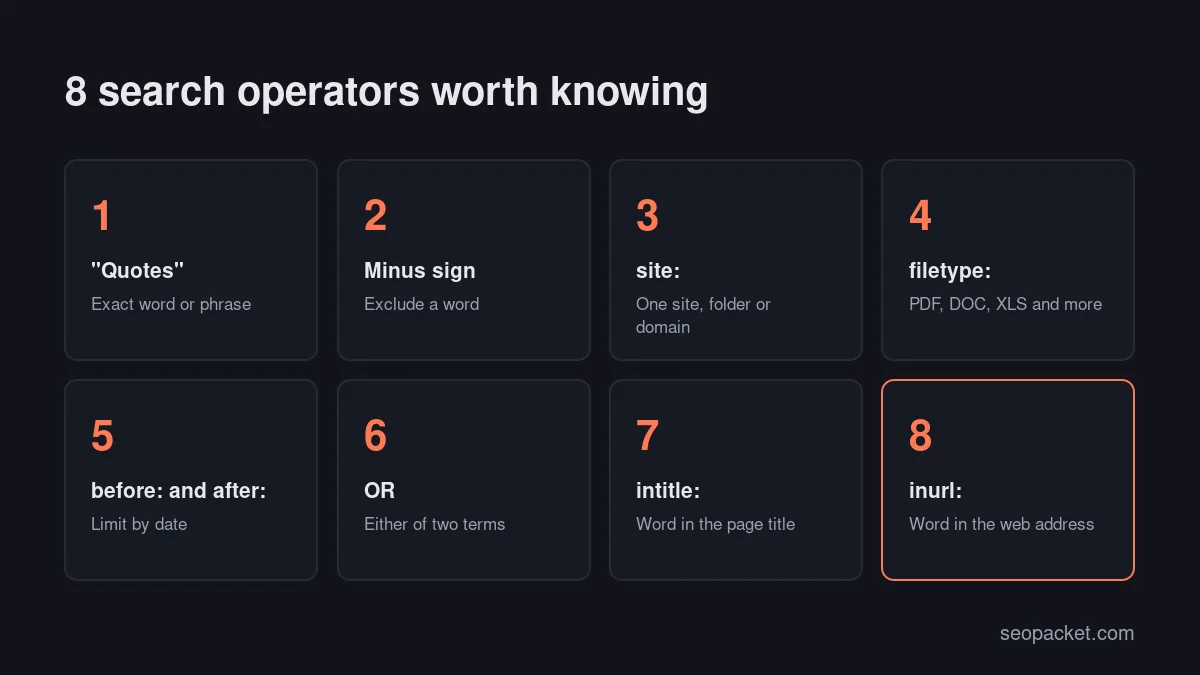
Google search operators that are documented
These are the safest to rely on. Google’s help page gives examples such as site:youtube.com cat videos, jaguar speed -car and photoelectric effect paper filetype:pdf, and shows that you can combine after: and before: to set a date range. Google’s search operator documentation for developers explains that filetype: matches on the file’s content-type header or its extension.
Watch out: Don’t put a space after the colon. Google’s help page notes that site:nytimes.com works but a version with a space does not. The same habit keeps the other operators predictable.
Undocumented Google search operators that still work
OR (or the pipe symbol), the asterisk wildcard, intitle:, allintitle:, inurl: and intext: still return useful results at the time of writing. Google doesn’t list them in its help pages, so it can change how they behave without notice. Use them to find candidates, not as proof. AROUND(n), which looks for two words within a set number of words of each other, has never been officially supported and gives inconsistent results.
Retired Google search operators
Google retired its cached pages in 2024, so cache: is no longer a dependable way to see a stored copy; use the Internet Archive’s Wayback Machine instead. Google has said that link: no longer works, and the Links report in Search Console is the replacement for your own site. related: and info: are no longer listed in Google’s documentation, and the plus sign and tilde were dropped years ago.
How to use Google Advanced Search step by step
Using Google Advanced Search takes a minute once you know which fields matter. Here is a repeatable process for a precise search, using the example of finding PDF guides about small business marketing on government websites.
- Open the form. Go to google.com/advanced_search, or choose Advanced Search from the Tools menu after a normal search.
- Add your main words. Type
small business marketingin “all these words”. - Add an exact phrase if you need one. Type
guidein “this exact word or phrase”, or a longer phrase that must appear in order. - Exclude noise. Type unwanted words in “none of these words”, such as
jobsorcourse. - Set the site or domain. Type
.govto limit results to government sites, or a full domain such asexample.com. - Choose where terms appear. Pick “in the title of the page” when you want pages that are about the topic, not pages that only mention it.
- Pick the file type and last update. Choose PDF, and “past year” if freshness matters.
- Run the search and refine it. Adjust the query in the search box using the operators from the table above.
Advanced Search form or operators: which should you use?
Use the Advanced Search form when you’re learning, or when you need filters that have no operator, such as language, region and usage rights. Use Google search operators when you search often, want to combine conditions in one line, or want to save a query in a document and rerun it every month.
The two work well together. The form handles filters such as region, and operators handle precise patterns: site:example.com intitle:guide -inurl:tag combines a site, a title word and an exclusion in a way the form can’t express in one go. A simple habit helps: keep a shared document of the Google search operators your team uses for audits and outreach, with one tested example for each, so everyone runs the same checks the same way.
How do you use Google search operators for SEO?
You use Google search operators for SEO by combining them into precise queries that answer one question at a time: which of my pages are indexed, who copied my content, what competitors publish and who might link to me. Each example below can be copied and adapted; replace example.com with your own domain.
1. Check indexing roughly with site:
site:example.com shows a sample of pages Google has indexed from your domain, and site:example.com/blog/ narrows it to one folder. Add inurl: to spot thin pages that shouldn’t be indexed, for example site:example.com inurl:tag for tag archives. As a sanity check, compare what you see with the number of URLs in your sitemap; a big mismatch in either direction is worth investigating.
Google’s site: operator documentation says the results are not exhaustive and that a missing URL should be checked with the URL Inspection tool. SEOPacket’s Indexing checks run Google’s URL Inspection for up to 20 pages per click and open Search Console when you want to request indexing. Our guide to getting indexed by Google covers the fixes.
2. Find duplicate and copied content
Copy a distinctive sentence from your page and search for it in quotes, excluding your own site: "a distinctive sentence from your page" -site:example.com. Any results are pages that copied or quoted you. Run site:example.com "the same sentence" to find duplicate text across your own pages, which often turns up repeated boilerplate or near-duplicate templates. Pick sentences of ten to fifteen words that are unlikely to appear anywhere else.
3. Research competitor content
Google search operators give you a quick view of what a competitor publishes. Try site:competitor.com/blog/ to see their articles, site:competitor.com intitle:checklist to find a content format, and site:competitor.com "local seo" after:2026-01-01 for recent pages on a topic. Use this as the starting point for a full SEO competitor analysis, which adds keyword and backlink data that operators can’t show.
4. Find guest post opportunities
Search for sites that accept contributions in your topic: "local seo" intitle:"write for us", marketing inurl:write-for-us or seo ("guest post" OR "contributor guidelines"). Judge every site on audience and quality, not on whether it accepts posts.
Watch out: Google’s spam policies list large-scale guest posting campaigns with keyword-rich anchor text links as link spam. Write for readers of a relevant site, and expect the site to qualify or nofollow your links.
5. Prospect for mentions and resource pages
Find pages that mention your brand without linking to it: intext:"your brand" -site:example.com. Find resource pages that collect useful links: "local seo" inurl:resources or "local seo" intitle:"useful links". Find roundups you could be added to: intitle:"best local seo tools" -site:example.com. Our own local SEO tools guide is an example of the kind of roundup this search surfaces.
6. Find content gaps and internal link opportunities
Search your own site for a topic: site:example.com "core web vitals". Every result is a page that could link to your main article on that topic. If the search returns nothing, you have a content gap. You can run the same check in the Advanced Search form by entering your domain in “site or domain”.
If site:example.com intitle:"core web vitals" returns several pages, they may compete with each other for the same searches. Our guide to SEO silos explains how to organise those pages.
7. Find stray files, subdomains and old URLs
site:example.com filetype:pdf lists indexed PDFs, which often include old price lists or brochures. site:example.com -site:www.example.com shows indexed subdomains other than www, such as forgotten staging sites. Because site: respects the protocol and subdomain you type, site:http://example.com can reveal pages still indexed on HTTP after a move to HTTPS. If you prefer the form, Advanced Search does the first check with its “site or domain” and “file type” fields.
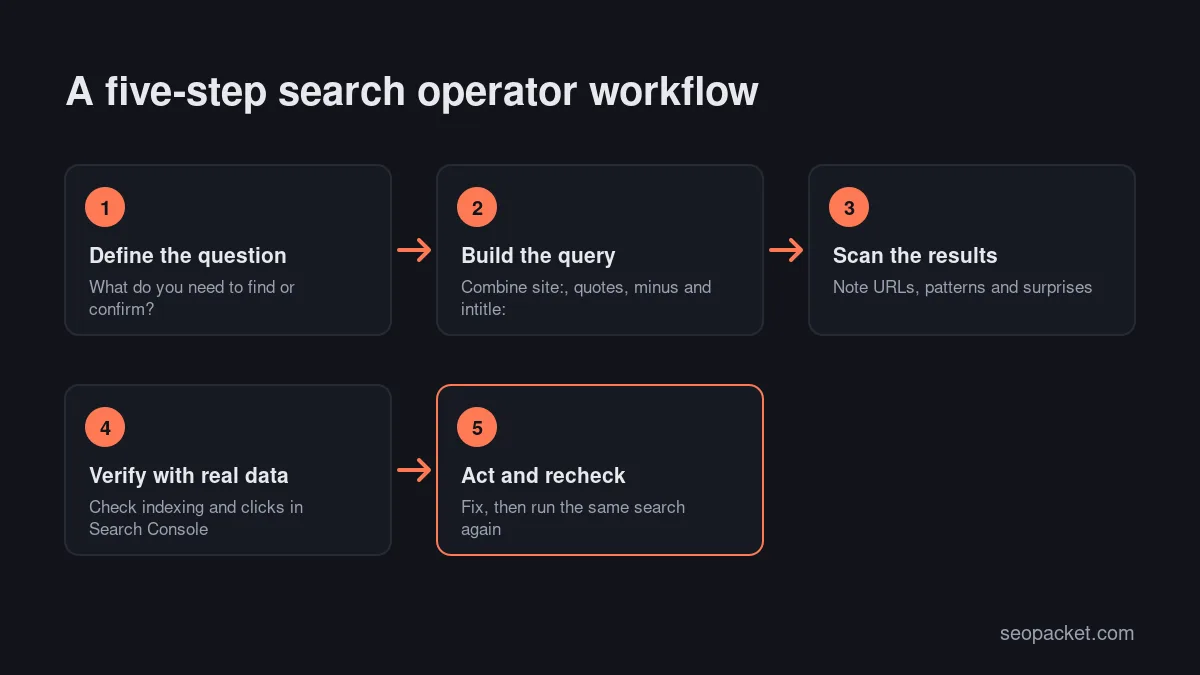
What are the limits of Google Advanced Search?
Google Advanced Search and operators show a sample of Google’s index, not a complete or exact list. Result counts are estimates, results vary with location and settings, and Google’s developer documentation says operators are bound by indexing and retrieval limits. Use them to find leads, then confirm with Search Console.
In practice, that means:
- Counts are estimates. The result count on a
site:search is not your number of indexed pages. The Page indexing report in Search Console gives the real figure for your site. - Dates are Google’s estimate.
before:andafter:rely on the date Google associates with a page, which may differ from the publish date. - Undocumented operators can change. If
intitle:orinurl:results look odd, try the Advanced Search form or a simpler query. - Results vary by searcher. Location, language and settings change what you see, so a colleague may get a different sample.
- No traffic or ranking data. Operators show what exists, not how it performs.
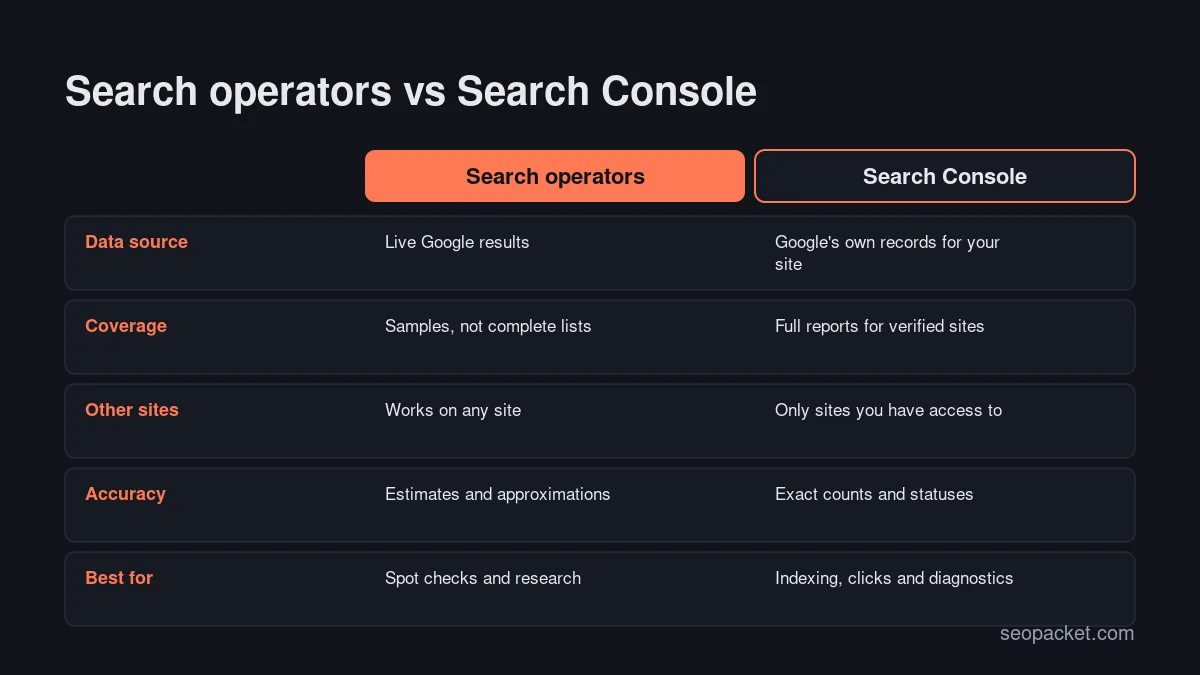
Operators are good for spot checks, not a full audit. Soft Learn Hub, the company behind SEOPacket, explains what a thorough SEO audit should include, and our technical SEO checklist lists the checks to run on your own site.
Common mistakes with Google search operators
- Adding a space after the colon.
site: example.comdoesn’t limit results to the site the waysite:example.comdoes. - Writing “or” in lower case. OR only works in capitals; lower-case “or” is treated as an ordinary word.
- Treating site: as an index count. Use Search Console for real numbers.
- Relying on retired operators.
cache:andlink:no longer return what older guides promise. - Using curly quotation marks. Text pasted from a word processor can carry curly quotes; retype them as straight quotes to be safe.
- Stacking too many operators. Long queries with several undocumented operators often return nothing. Start simple and add one filter at a time.
Google Advanced Search is one of the few free research tools that works on any website, including your competitors’. Learn the documented operators first, use the undocumented ones for leads, and check anything important against Search Console before you act on it.
Frequently asked questions
Where do I find Google Advanced Search?
Go to google.com/advanced_search, or run a normal search and choose Advanced Search from the Tools menu. The form works in any desktop or mobile browser.
Do Google search operators still work?
Yes. At the time of writing, Google documents quotes, the minus sign, site:, filetype:, before: and after:, plus imagesize: and src: for Google Images. Operators such as OR, intitle: and inurl: still work but are undocumented, so treat their results as approximate.
Is the site: operator accurate for counting indexed pages?
No. Google says site: results are not exhaustive, and the result count is an estimate. Use the Page indexing report in Search Console for the real number of indexed pages on your site.
What replaced the cache: and link: operators?
Google retired cached pages in 2024, so use the Internet Archive’s Wayback Machine to see older copies of a page. For links, use the Links report in Search Console for your own site, or a backlink tool for other sites.
Can I use advanced search on my phone?
Yes. Operators such as quotes, site: and filetype: work in the search box of the Google app and mobile browsers, and the Advanced Search page opens in any mobile browser.
Is using Google search operators against Google's rules?
No. Typing operators into Google is normal use. Automated scraping of results is a different matter and is restricted by Google’s terms, so use operators manually or through official tools.

Leave a Reply